In the Subscriptions section, you can view the current status of your plan, keep track of upcoming charge dates, and manage the number of Seats and your billing details.
How to open subscription settings
To open the settings page, click the icon with your initials at the very bottom of the left sidebar and select the Subscriptions section.
Current subscription overview
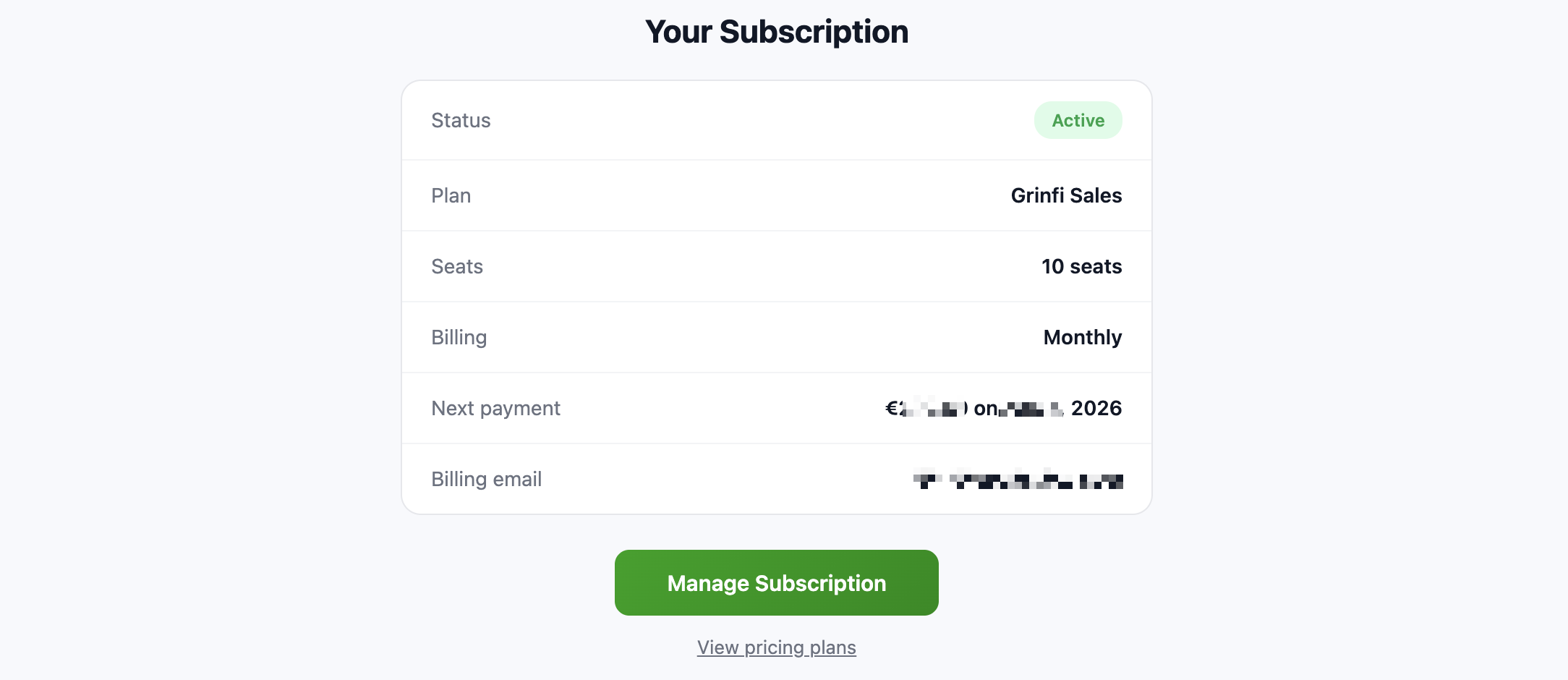
The main screen of the section displays the Your Subscription card, which contains all the key information about your current billing status:
-
Status: The current state of the subscription (for example, Active, Past due, etc).
-
Plan: The name of your active pricing plan.
-
Seats: The number of paid Seats.
-
Billing: Your billing cycle (monthly, every six months, annually).
-
Next payment: The amount and exact date of your next automatic payment.
-
Billing email: The partially hidden email address of the payer.
How to make changes to your subscription
For security reasons, financial management is handled through a secure billing portal (Stripe).
To make changes to your subscription:
-
Click the green Manage Subscription button.
-
The system automatically sends an email to your Billing email.
-
Open your inbox, find the email from the payment system, and follow the secure link to log in to the billing portal.
-
In the portal, you can change your pricing plan, increase or decrease the number of Seats, update your bank card details, or cancel your subscription entirely.
If you want to review the available plans without going to the billing portal, click the View pricing plans link.
Payment, upgrade and cancellation policy
Before making changes to your plan, please review the basic billing rules in the system:
Upgrade
If you upgrade (move to a more expensive plan, or add new Seats, new technical capabilities, etc), the changes are applied in the system immediately after a successful payment. The system automatically calculates the price difference and charges your card only for the actual time you use the new plan until the end of the current billing period.
Downgrade and subscription cancellation
-
The system does not provide refunds for periods that have already been paid for.
-
If you decide to downgrade (move to a cheaper plan or reduce the number of paid seats) or cancel your subscription entirely, these changes only take effect from the start of the next billing period.
-
If you cancel your subscription, your account will not be restricted or blocked right away. You and your team will keep full access to the workspace and to all the features of your current plan until the paid period ends.