AI Variables are a personalization tool that lets you use artificial intelligence to automatically edit and adjust existing data about a contact or a company. For example, you can use them to transliterate names from Latin to Cyrillic or to remove abbreviations like "LLC" from company names.
🟡 Note: By default, all users use the system artificial intelligence token from Grinfi, whose limit depends on your current plan. You can connect your own LLM token - in that case, there will be no limits on the number of requests on the Grinfi side. Detailed instructions are in the article [Connecting Your Own LLM Token for AI Features].
AI Variables available by default
Three basic AI variables are already created in the system by default. They help automatically clean up standard data from unnecessary characters (emoji, pronouns, incorrect formatting, etc):
-
ai_contact_first_name: Edits and cleans up the contact's first name (for example, turns "MR JOHN" into "John").
-
ai_company_conversational: Adapts the company name for natural conversation (for example, "GRINFI LLC" becomes "Grinfi").
-
ai_position_conversational: Simplifies the official job title (for example, "Senior Certified Accountant" turns into "Accountant").
How to create your own AI Variable
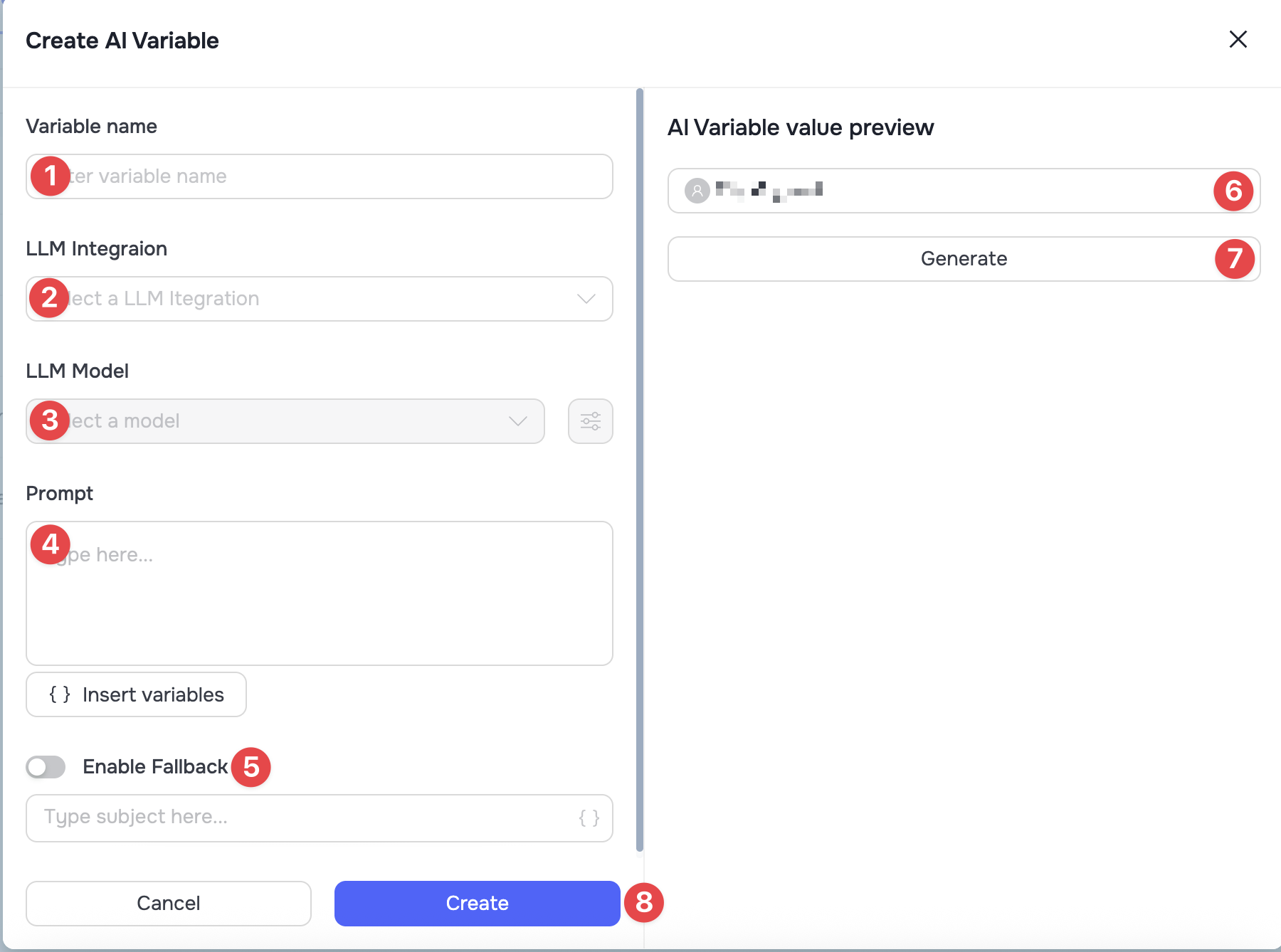
To create a new variable, go to the AI Variables section in the left sidebar and click the Add Variable button. In the modal window, fill in the following parameters:
-
Variable name (1): Enter a unique name that will let you easily identify this variable.
-
LLM Integration (2): Choose a connected integration (the system one from Grinfi or your own).
-
LLM Model (3): Choose the AI model version you need for processing.
-
Prompt (4): Choose the static variable you want to edit and write a detailed instruction (prompt) for the AI describing exactly what it should do with it.
-
Enable Fallback (5): Make sure to turn on this toggle and specify a fallback text or variable. This value will be used as a backup option when the AI can't generate a result from the prompt.
-
Testing: On the right side of the window, you can choose a specific contact from your CRM (6) and generate (7) a test result based on it to check the output.
-
To finish, click the Create (8) button.
Advanced LLM model parameters
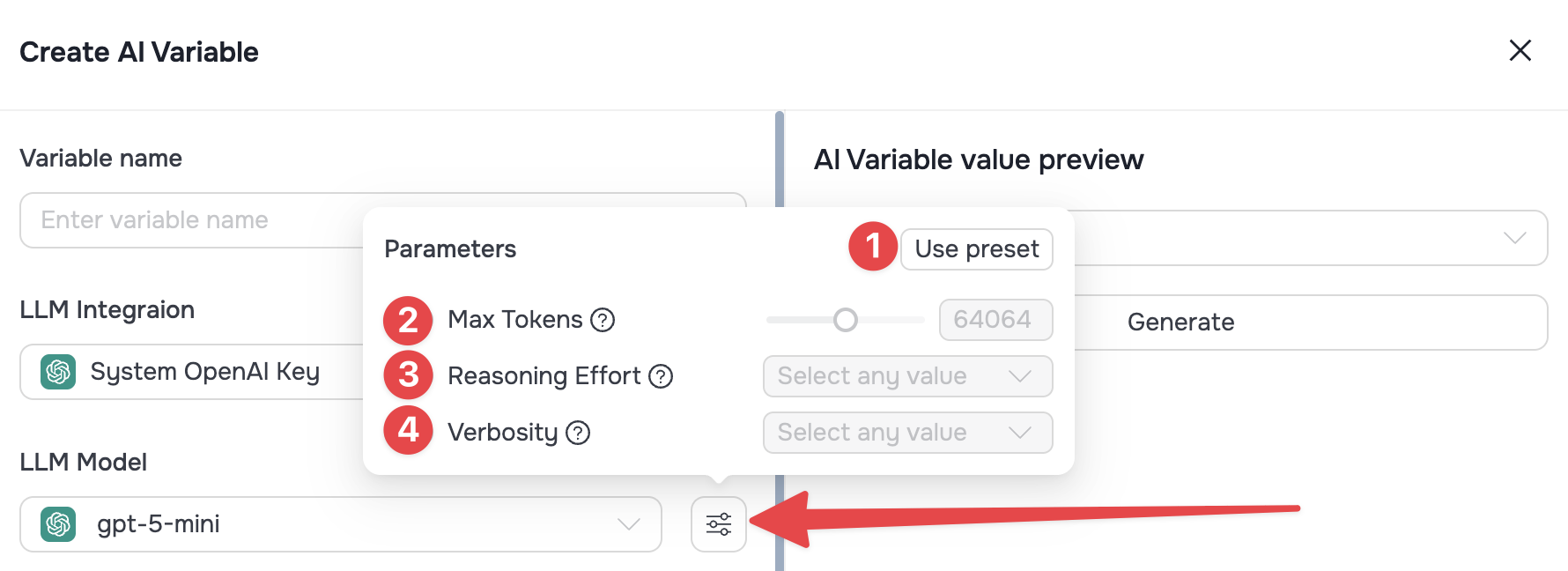
Next to the model selection field (LLM Model), there is an advanced settings icon that lets you fine-tune generation:
-
Use Preset (1): Lets you set the general tone of the response (maximally precise, creative, or balanced generation).
-
Max Tokens (2): Defines the maximum number of tokens the selected model can spend on creating the result. If the response is cut off or doesn't display in full, try increasing the value of this parameter.
-
Reasoning Effort (3): Relevant for reasoning models. Limits the amount of computing resources the model spends on logical reasoning (available values: minimal, low, medium, high). Lowering this value gives you a faster response and spends fewer tokens, but may reduce the depth of the analysis.
-
Verbosity (4): Defines the level of detail in the result (low, medium, high). Lower values make responses more concise, higher ones make them as detailed and expansive as possible.
Where AI Variables are used
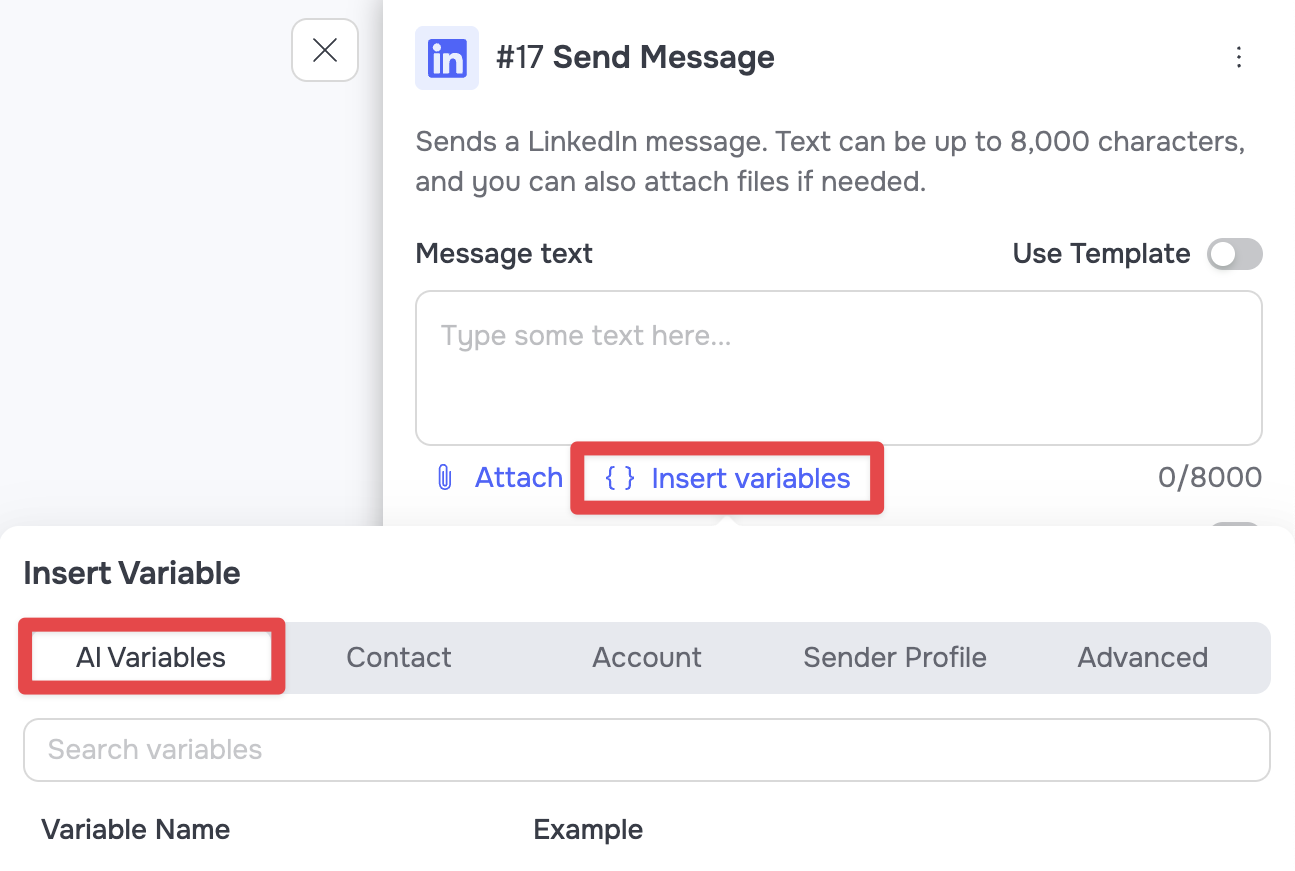
The AI variables you create can be used in the communication nodes of an automation that work with text (for example: sending a connection request, messages, etc).
To apply an AI variable in the relevant node, just click the Insert Variables button under the text input field and choose the AI Variables tab.