To enhance your profile security, Grinfi uses a unique connection approach through integration with a cloud-based No-Detect browser.
You can find detailed information about this authorization method and how it protects your profile from restrictions in the article: [No-Detect Browser Integration - how it helps you work securely].
Step 1: Create a Sender Profile
Before connecting your LinkedIn account, you need to create a workspace for this account - a Sender Profile. You can find detailed instructions on how to fill in all the fields in the article: [How to Create Sender Profile].
Step 2: Set up a Proxy
After creating the sender profile, the system will prompt you to choose a proxy server. This is necessary so that Grinfi operates from the same country where the account owner is actually located.
You can:
- Choose one of the addresses provided by the Grinfi platform (1)
- Connect your own proxy server (2).
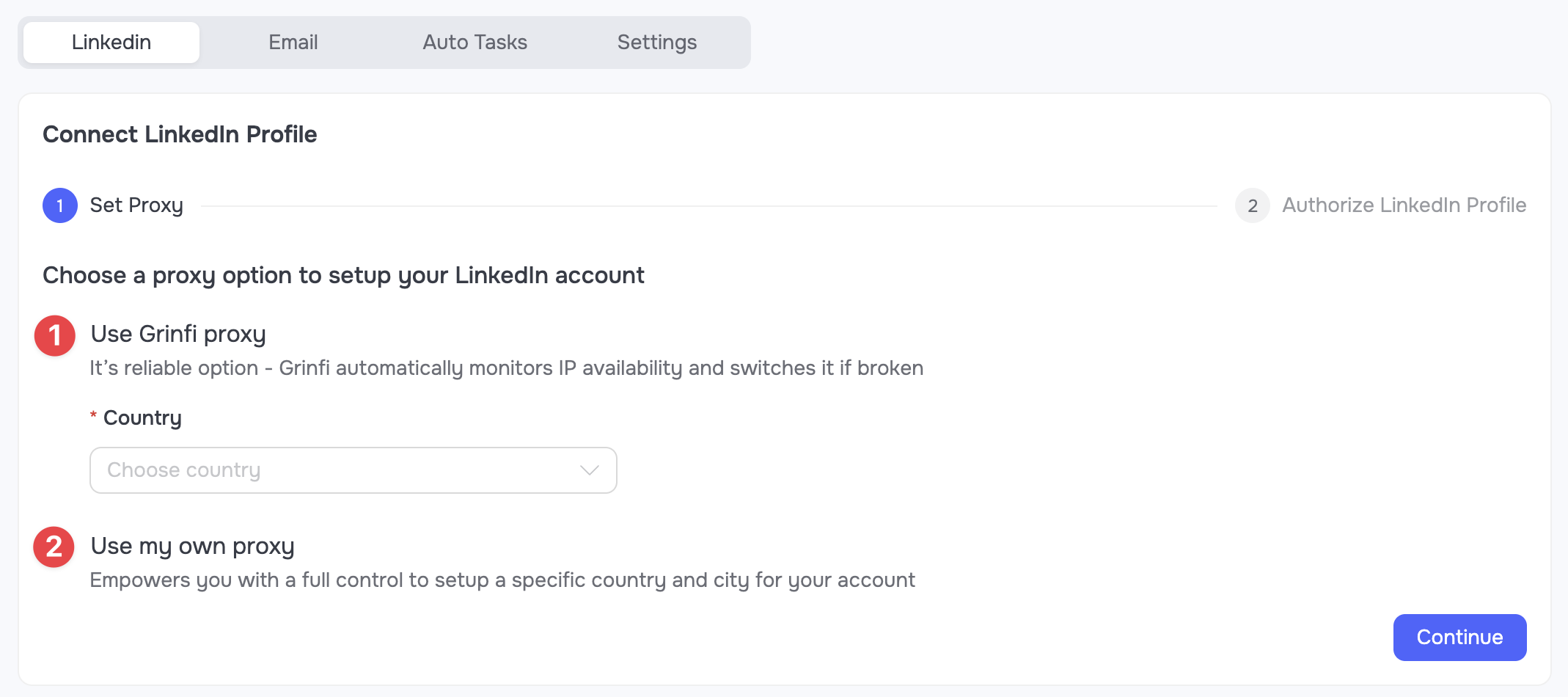 🟡 Note: The country of the proxy server must be selected exclusively based on the actual permanent residence and physical location of the account owner.
The choice of proxy does not depend on the country specified in the LinkedIn profile settings or the geography of the market you are targeting with your campaigns.
The main security rule: The proxy IP address must match the location from which the owner usually logs into LinkedIn manually.
Step 3: Connect your LinkedIn profile
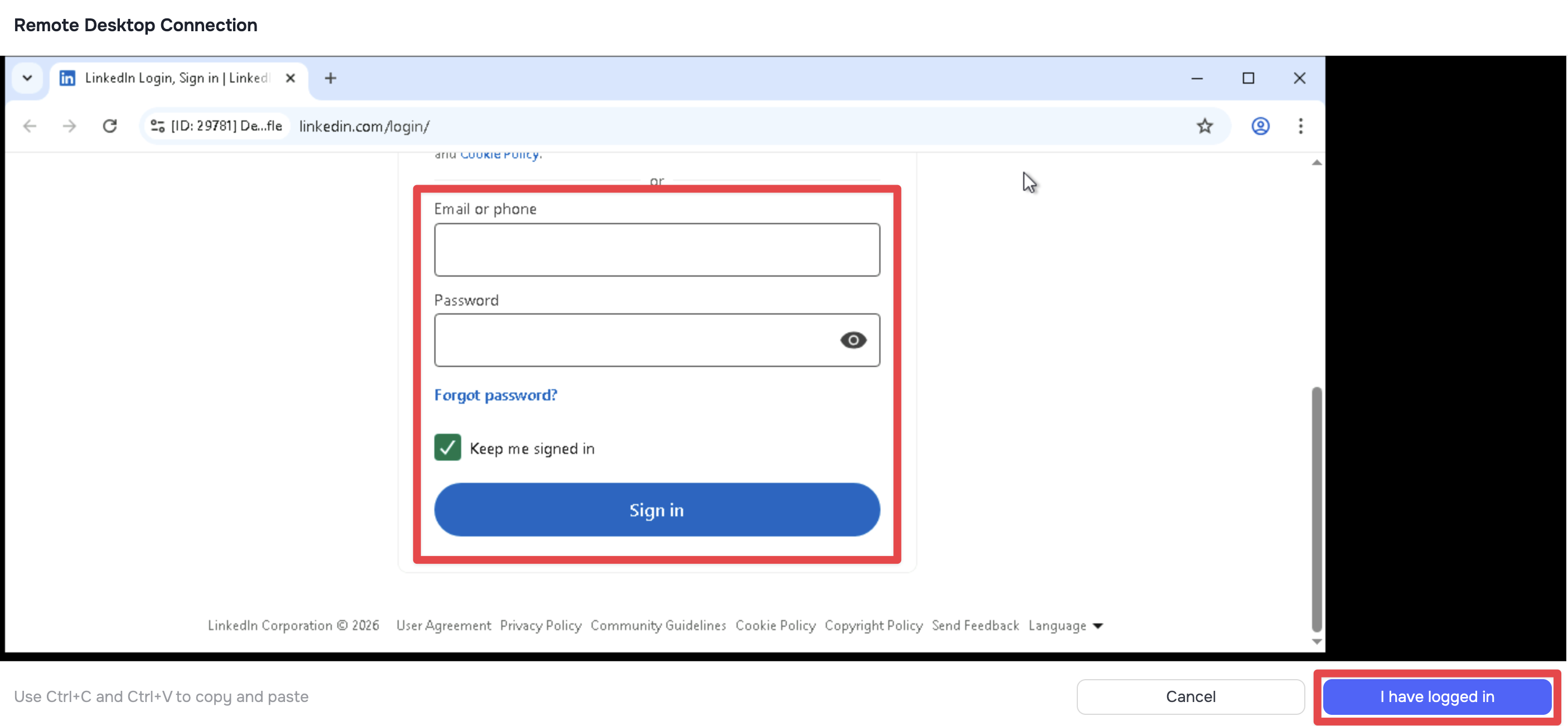
- In the connection window, click the Open Cloud Browser button.
- In the browser window that opens, enter your LinkedIn login and password.
- Complete the standard authorization process (including entering a security code if LinkedIn requests it).
- After successfully logging into the account, click the I have logged in button.
Connecting a profile without requiring registration in Grinfi
If you need to connect the profile of an employee, client, or any other person, you can generate a unique link. By following this link, the account owner can authorize the profile independently, without needing to register in Grinfi or share their login and password with third parties.
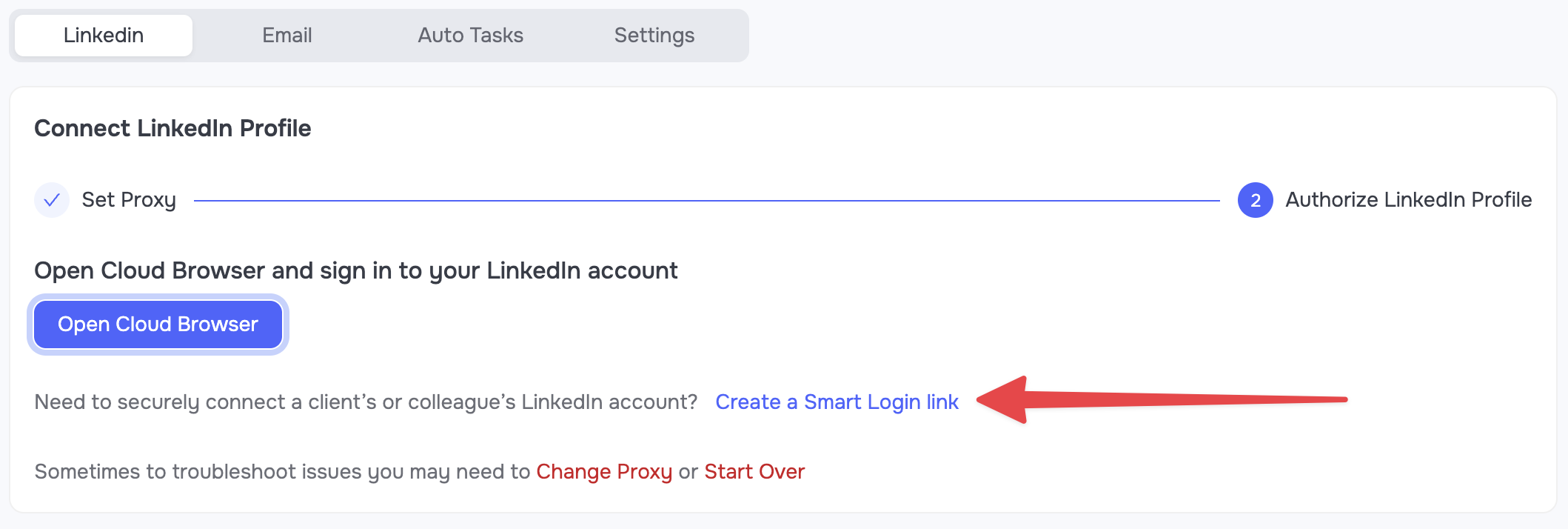 1. Click Create a Smart Logic link to generate a unique connection link.
2. Send it to the profile owner. The link is valid for 7 days.
3. After opening the link, the user will see a remote desktop with the LinkedIn login page.
4. They need to enter their login and password, and after successful authorization, click the I have logged in button.
1. Click Create a Smart Logic link to generate a unique connection link.
2. Send it to the profile owner. The link is valid for 7 days.
3. After opening the link, the user will see a remote desktop with the LinkedIn login page.
4. They need to enter their login and password, and after successful authorization, click the I have logged in button.
Alternative Option: connecting via GoLogin desktop app
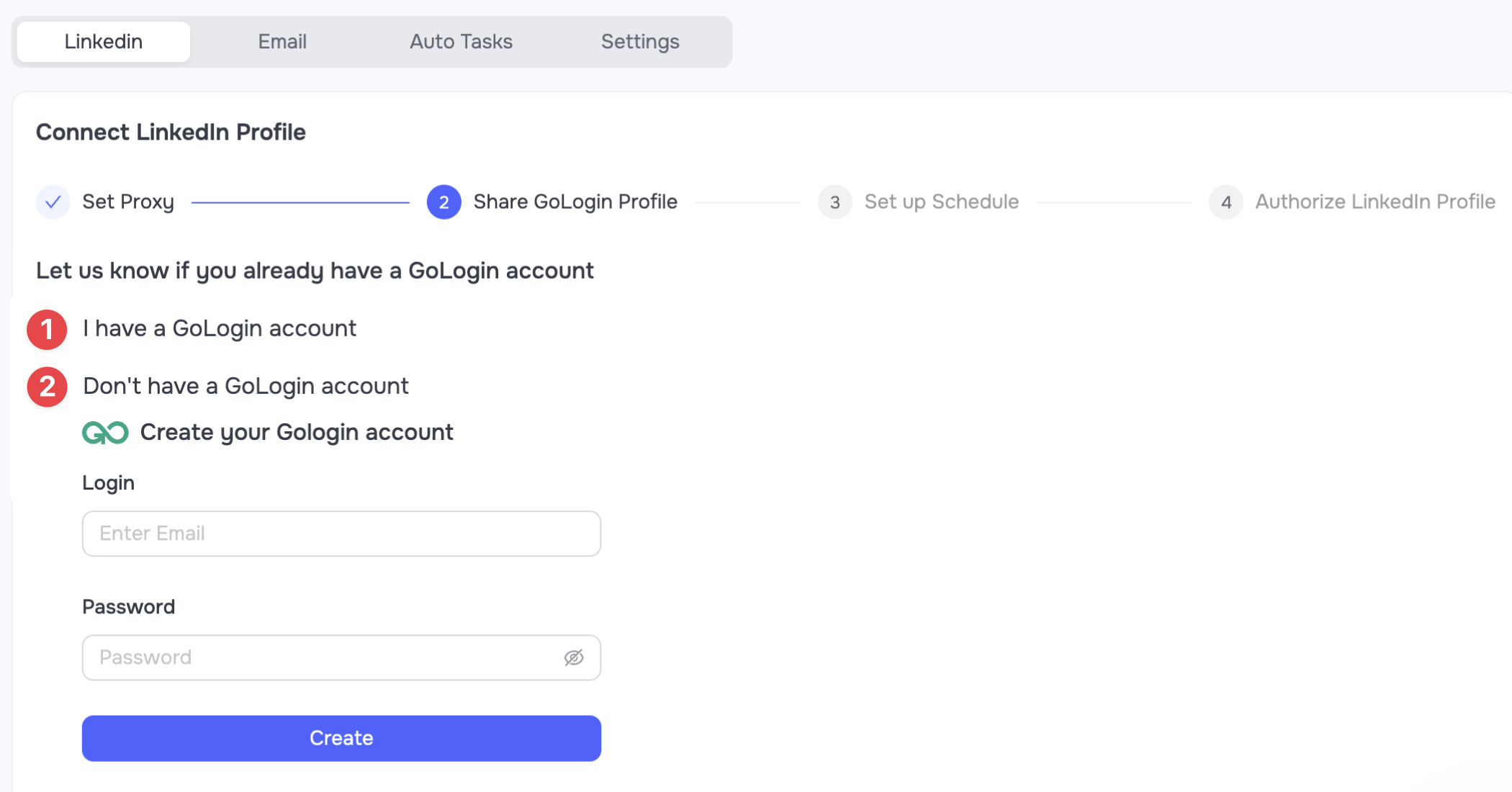
If there are no available remote desktop (cloud browser) slots at the time of connection, the system will offer a connection directly through the GoLogin application.
- If you already use GoLogin, specify the email of your GoLogin account, and the system will grant access to the session to this email (1).
- If you do not have GoLogin, complete a quick registration and download the desktop version of the program (2).
- Open the GoLogin app on your computer and start the session. Example of a session name transferred by Grinfi to GoLogin: [ID: XXXXX] Name Surname.
- Complete the standard LinkedIn login.
- Make sure to close the session afterward (but do not close the GoLogin application itself).
- Return to Grinfi, confirm that the steps have been completed, and click Check LinkedIn Session.
 After successfully connecting your profile using any of the available methods, you will see a page containing information about your LinkedIn profile status, statistics, limits, etc.
Read more about the Sender Profiles section in the following article: [Sender Profiles Overview].