Sender Profile - is a digital entity to which you connect your LinkedIn and Email accounts, as well as manage the workload and activity of the profile.
We recommend reviewing the following guides:
[How to connect LinkedIn Account to Grinfi]
[How to Connect Email]
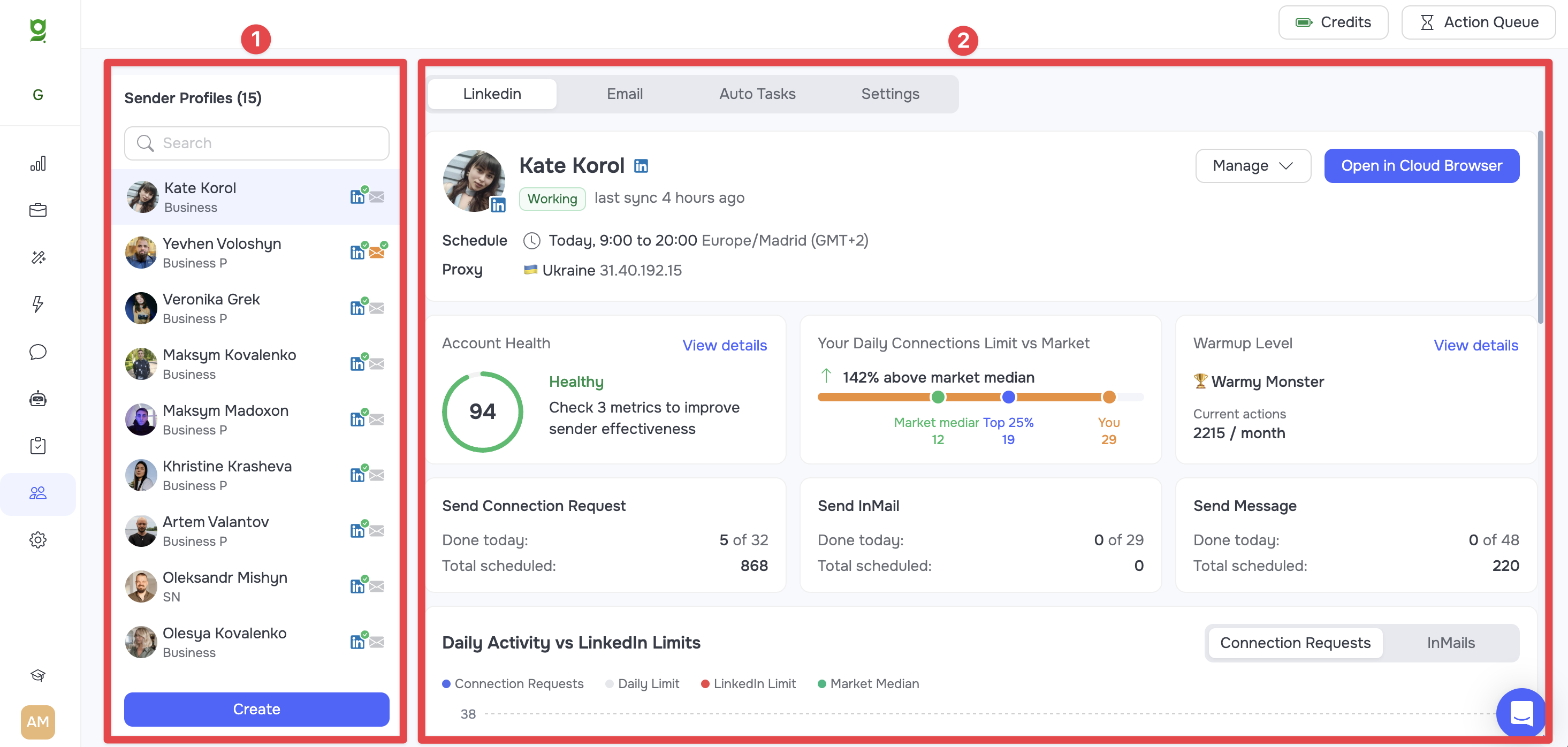
The section screen consists of a side navigation bar (1) on the left and a main working area (2) with tabs in the center.
Side Panel
The side panel displays all the Sender Profiles you have created. You can quickly switch between different senders.
-
The Search field allows you to find the required profile by first and last name.
-
The Create button creates a new sender profile. You can find information on creating a Sender Profile in the article: [How to Create Sender Profile].
Next to each profile name, you will see colored channel status icons:
-
A blue LinkedIn icon means LinkedIn has been connected.
-
An orangeemail icon indicates that an Email channel has been connected.
-
Gray icons indicate that the channel has not been connected yet.
Additionally, green, yellow, and red color markers are displayed on top of the blue and orange icons, signaling the current real-time operating status of each channel.
You can find detailed information about the meaning of each marker and what to do in case of errors in the article: [Sender profiles: Statuses Overview & Troubleshooting].
All detailed information about the selected profile is divided into four tabs in the main working area.

1. LinkedIn Tab
This tab opens by default and contains a complete set of tools for managing your LinkedIn account, monitoring its security, and configuring activity.
General information and management
The upper section displays:
-
The profile's First name and Last name (1)
-
Current status and time of the last data synchronization (2)
-
Server Schedule (3)
-
Configured proxy server address (4)
-
Manage (5) dropdown menu
-
Open in Cloud Browser (6) button - allows you to open the LinkedIn profile in a secure cloud environment

The following functions are available in the Manage dropdown menu:
-
Update Schedule: Change the working schedule of the LinkedIn profile.
-
Update proxy: Change the proxy server. Used if you need to update the IP address through which the system interacts with LinkedIn.
-
Open via GoLogin: Launch the profile via the GoLogin desktop anti-detect browser.
🟡 Note: To open the profile correctly, you must first download the GoLogin desktop app and register an account. After that, use the Share GoLogin button in the profile menu and enter the email address you used during your GoLogin registration to share the session to your account.
Read the article at the link: [No-Detect Browser Integration - how it helps you work securely]. -
Share Gologin: Share access to the session with a GoLogin account.
-
Stop: Temporarily pause the profile and disconnect it from the server.
-
Re-sync Withdrawal Queue: Force-update information about the queue of unwithdrawn connection requests on the profile.
-
Disconnect: Completely disconnect the LinkedIn profile from the platform.
LinkedIn profile metrics
Below is a dashboard for evaluating the profile's status and activity.
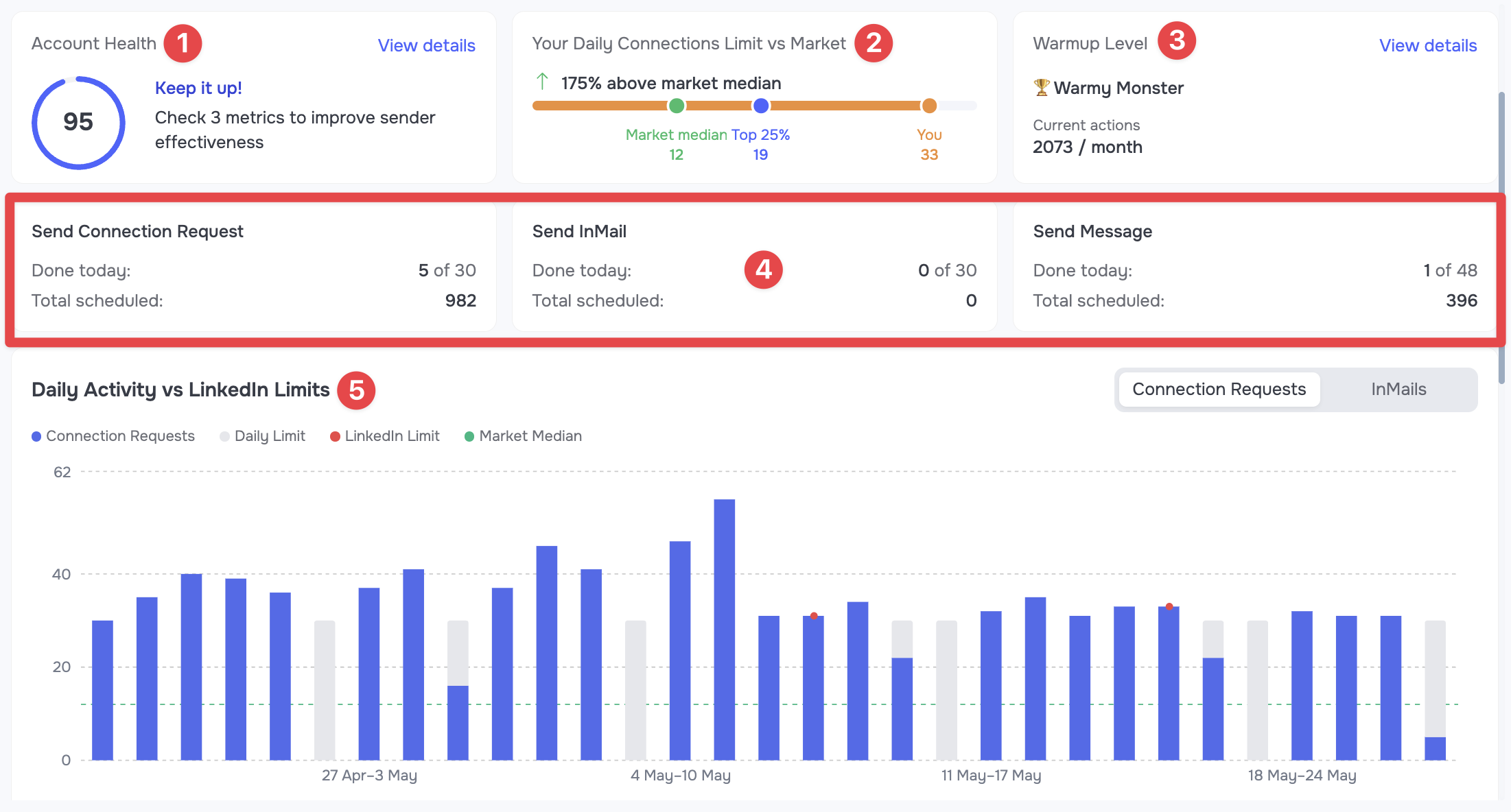
It includes the following modules:
-
Profile health score evaluation (1)
-
Activity level comparison (2) relative to other Grinfi users
-
Profile warm-up level (3)
-
Counters (4) for completed and scheduled tasks
-
Activity and limit charts (5)
Read more about the functionality of this block in the article: [Understanding Profile Insights: Health Score, Stats, and Charts].
Action limit settings
In this block, you define how many actions your profile can perform per day (connection requests, messages, InMails, profile views, etc).
You can choose one of two strategies:
-
Smart Limits: The recommended mode. Grinfi's algorithms automatically calculate the maximum safe number of daily actions based on profile data.
-
Manual Management: Set limits manually in the corresponding fields.
Find step-by-step instructions on setting limits in the article: [Smart Limits and Daily Limits settings for the sender profile].
2. Email Tab
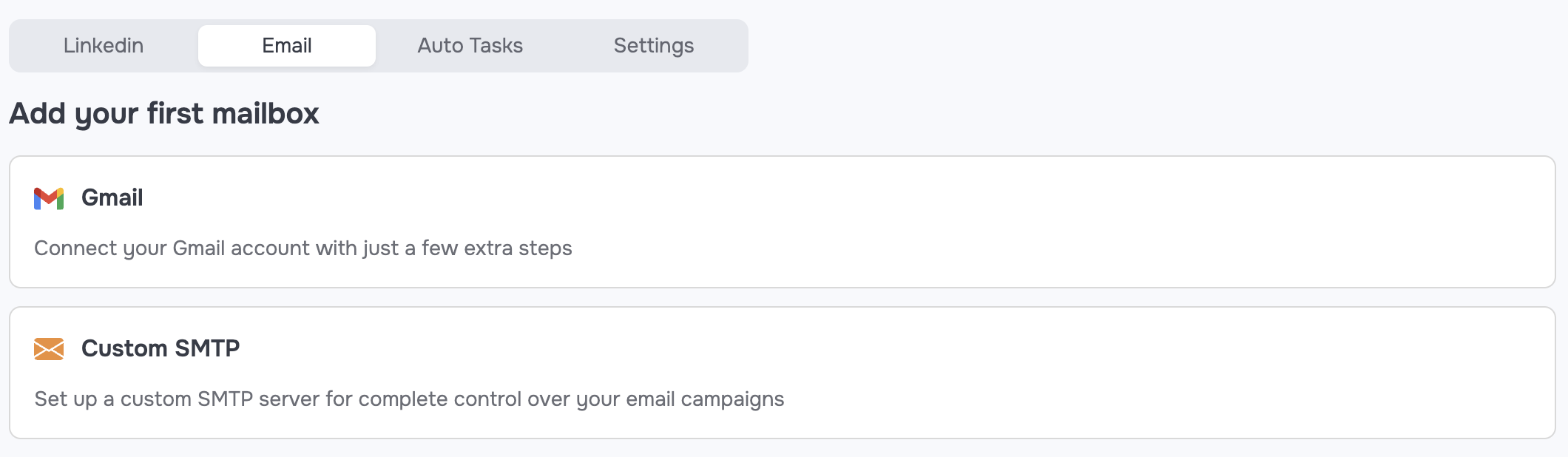
This tab is designed for managing email inboxes used for automated campaigns. Choose the appropriate provider and connect your email.
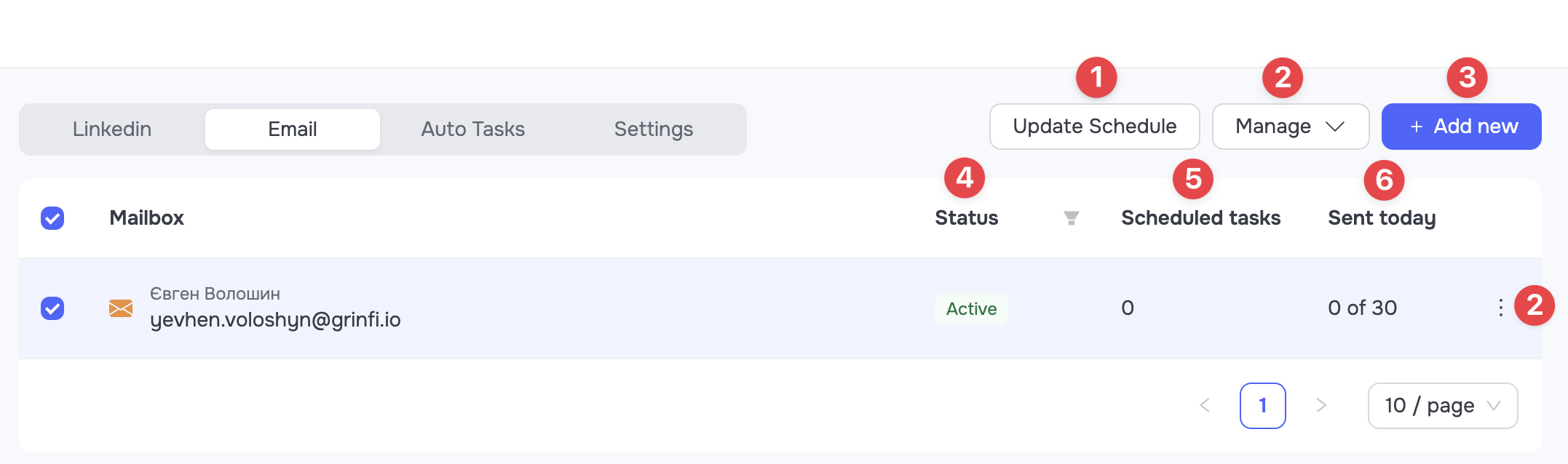
The functionality in the connected email management panel allows you to:
-
Set the email work schedule (1)
-
Manage email settings (2)
-
Connect (3) an additional email account
-
Check the email status (4) (Active/Paused/Error)
-
View the number of scheduled tasks (5)
-
View the number of completed tasks for today (6)
3. Auto Tasks Tab
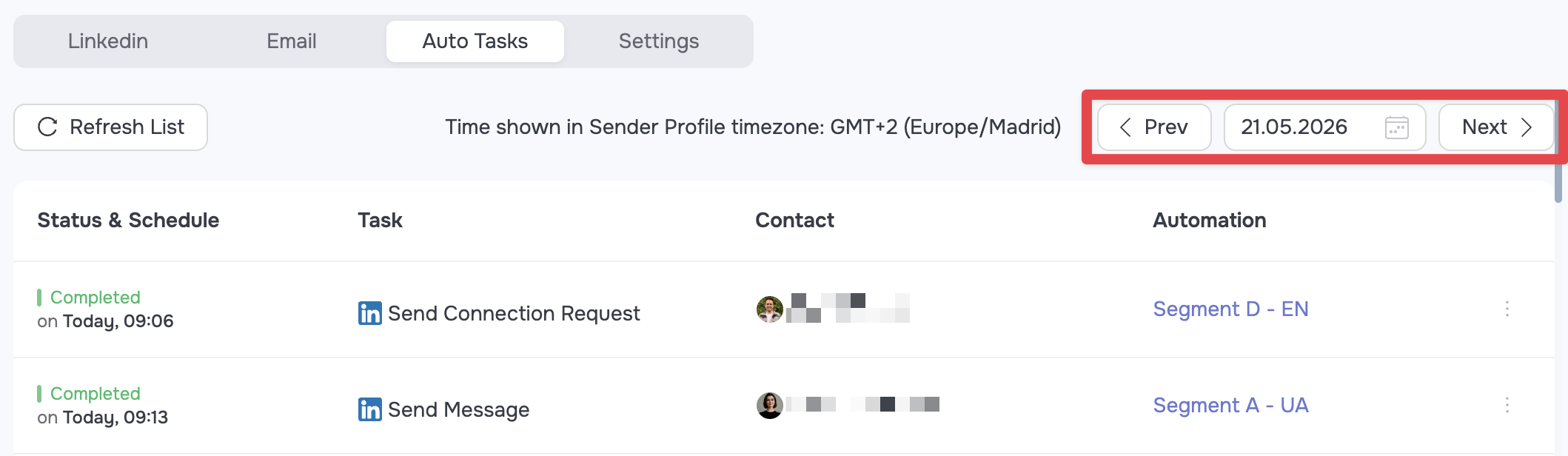
This is a log of all actions that the platform has either completed or plans to perform on behalf of your Sender Profile.
-
Use the date control panel to view previously completed or upcoming scheduled tasks.
-
For each task, its status, type (e.g., Send Connection Request, Send Email), contact, and automation name are indicated.
🟡 Note: The queue of scheduled tasks is dynamic and constantly updated depending on user actions (e.g., when adding new contacts to an automation or changing the work schedule). Keep in mind that the queue and the number of scheduled tasks may change.
4. Settings Tab
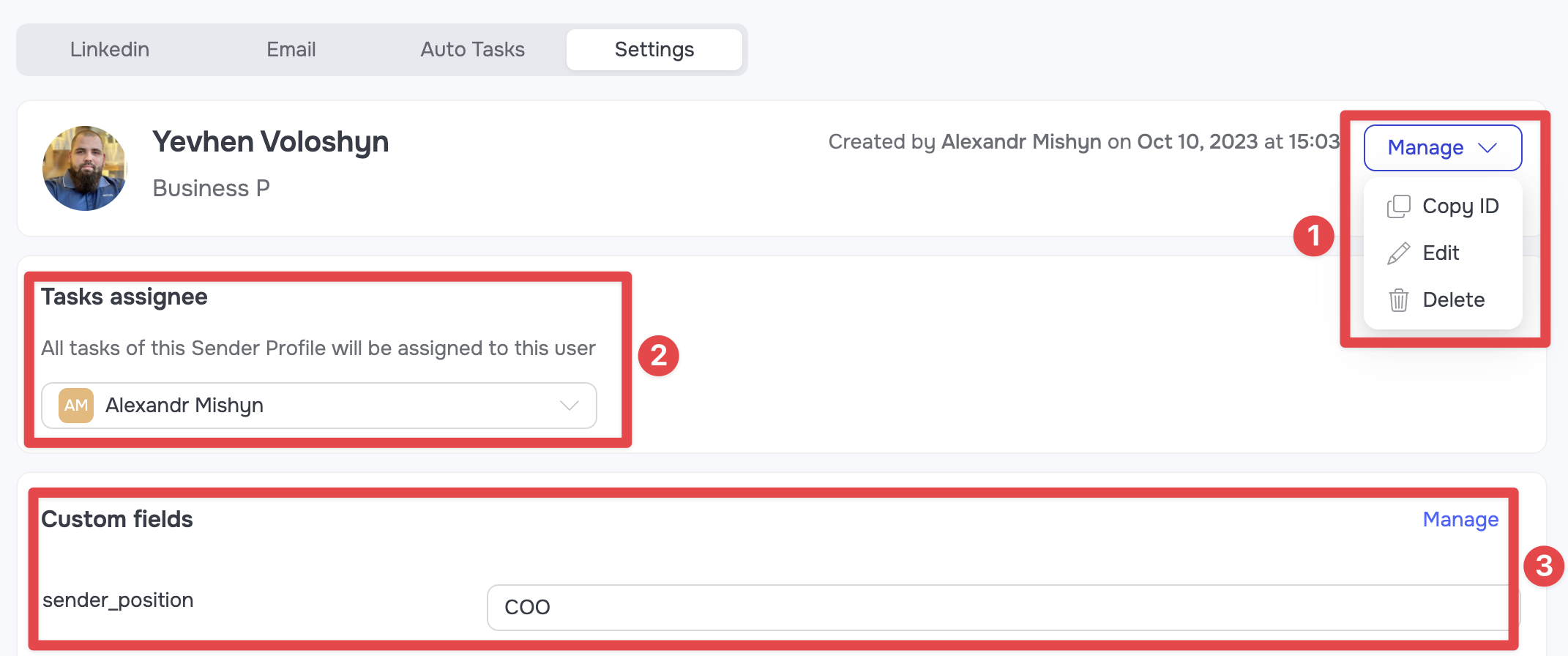
This tab contains the general settings for your Sender Profile.
-
Manage block (1): Allows you to get the internal profile ID, edit profile information (First Name, Last Name, Note-Label), and delete the Sender Profile.
-
Task assignee (2): Allows you to change the user responsible for the profile.
-
Custom fields panel (3): Allows you to configure custom variables related to the selected profile.
Read the article about custom variables at the link: [Custom Fields Management]