Sender Profile - is the core object (entity) within the system to which you connect your LinkedIn profile, Email account, and where you can monitor all automated processes (Auto Tasks) related to these channels.
Creating a Sender Profile is the very first step to start working with automation in Grinfi.
You can find a detailed overview of this section in the article: [Sender Profiles Overview].
You can find out how to connect your LinkedIn account in the article: [How to connect LinkedIn Account to Grinfi].
You can find out how to connect your email account in the article: [How to connect Email].
Step 1: Go to Profile Creation
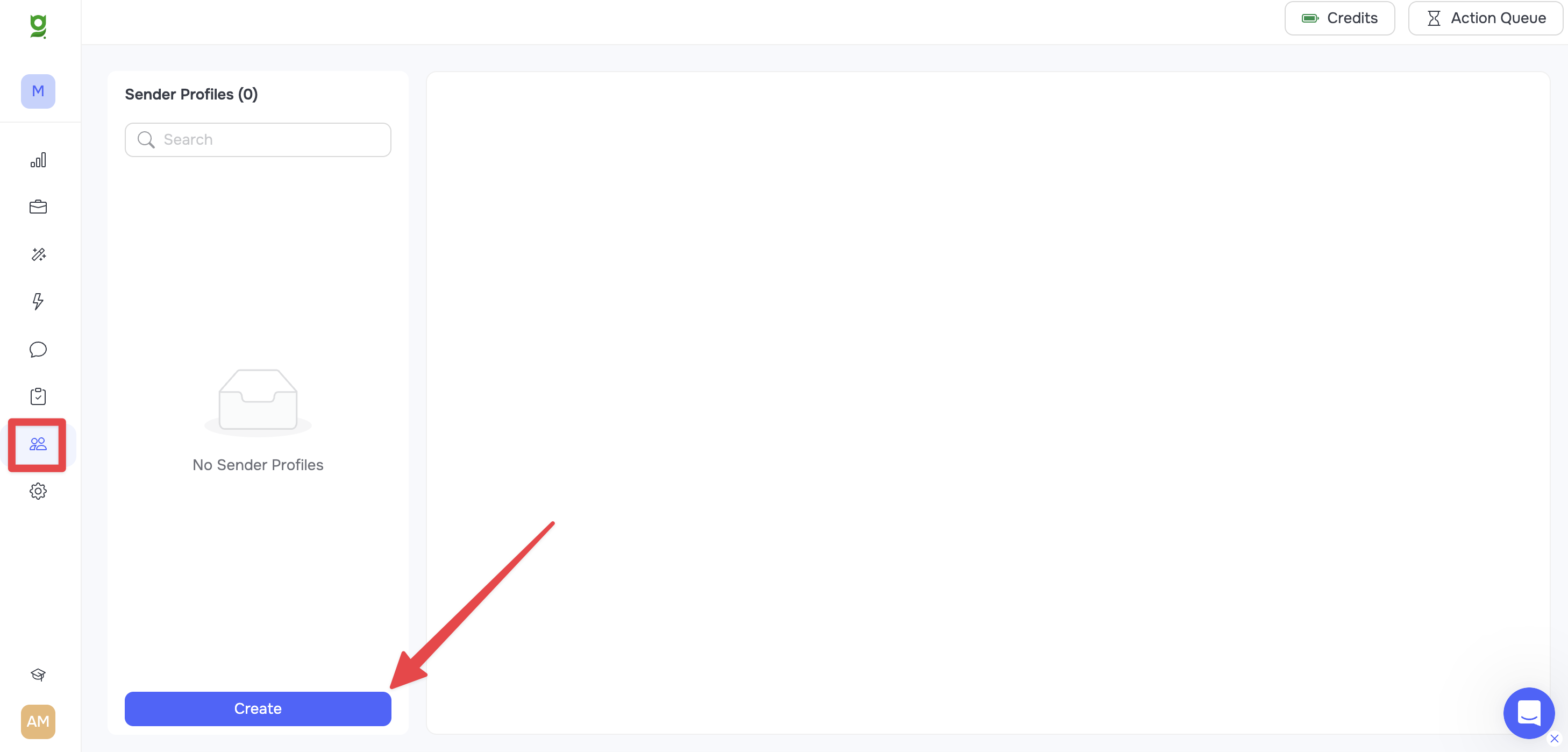
- In the side navigation panel, go to the Sender Profiles section.
- Click the Create button.
Step 2: Fill in the Basic Information
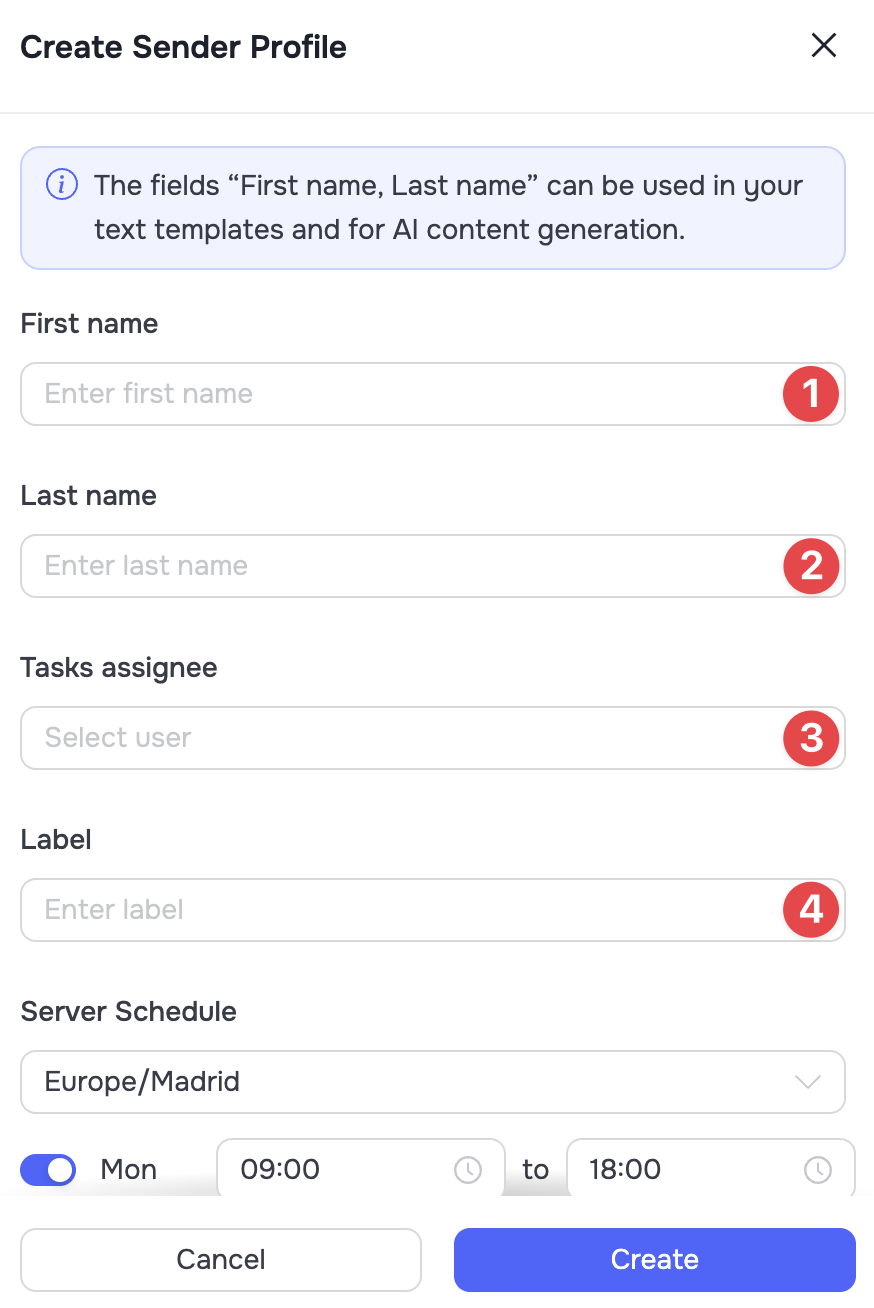
In the settings modal window, fill in the following information:
- First name (1) and Last name (2): Enter the first and last name for your profile.
🟡 Note: This data can be used as variables in text templates. Make sure to enter the first and last name exactly as they should appear later in your messages and emails.
- Tasks assignee (3): Select the user from the list who will be responsible for this profile and its tasks.
- Label (4): (Optional) Add a text tag or a note for easy profile identification. This field may be left empty.
Step 3: Set up the Server Schedule
The Server Schedule block determines the days of the week and time frames during which your profile will be active and performing scheduled actions.
- Enable or disable the required weekdays using the corresponding toggle switches.
- For each active day, set the working hours (e.g., from 09:00 to 18:00). You can vary this time for different days to make the activity look more natural.
- Make sure that the timezone is set correctly (your current timezone is displayed by default).
You can find more details about why the server schedule is important, how it helps protect your account, and its operational logic in the article: [Sender Profile Work Schedule].
Step 4: Save the Settings
After filling in all fields and configuring the schedule, click the Create button at the bottom of the window. Your new Sender Profile has been successfully created.