The AI Templates section lets you generate unique, personalized message texts with artificial intelligence directly inside the platform. Thanks to configured AI modules, you can scale your communication while keeping an individual approach to every contact.
🟡 Note: By default, all users use the system's artificial intelligence token from Grinfi, whose limit depends on your current plan. You can connect your own LLM token - in that case, there will be no limits on the number of requests on the Grinfi side. Detailed instructions are in the article [Connecting Your Own LLM Token for AI Features].
How to create an AI Template
-
Go to the AI Templates section in the left sidebar and click the Create button.
-
In the modal window, enter the template name and choose its usage type (personal message/email, InMail, or connection request).
-
If needed, turn on the access option to share the template with other workspace members.
-
Click Create to go to the editor.
Setting up the message logic
In the main editor window, you build the actual structure of your message.
-
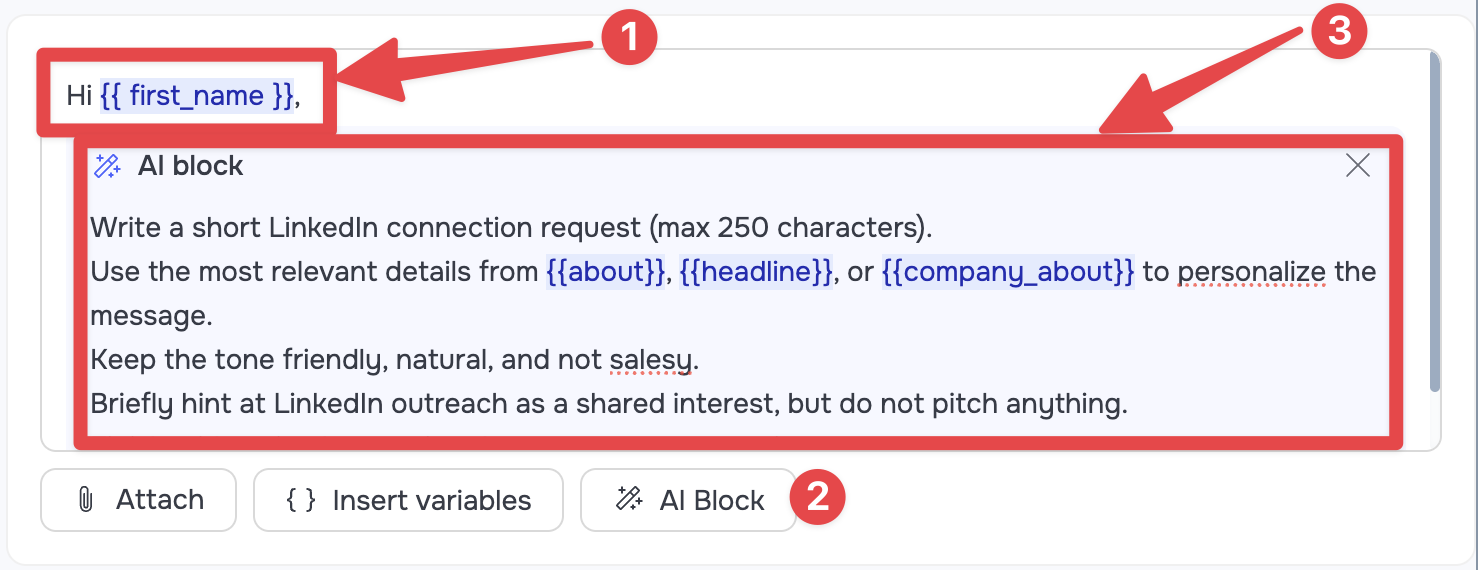
Static text (1): In the main text field, you can write the static part of the message, which will not be generated by AI and will stay the same for everyone.
-
AI Block: To add dynamic personalization, click the AI block (2) button. Inside this opened block (3), you need to write a detailed instruction for the artificial intelligence about exactly what it should generate.
For example: The tone you want, message length limits, the context of the outreach, and the specific variables the AI should take information from to generate the text.
Setting up the LLM and global context
Scroll further down the editor page to configure the artificial intelligence parameters and give it key knowledge.
-
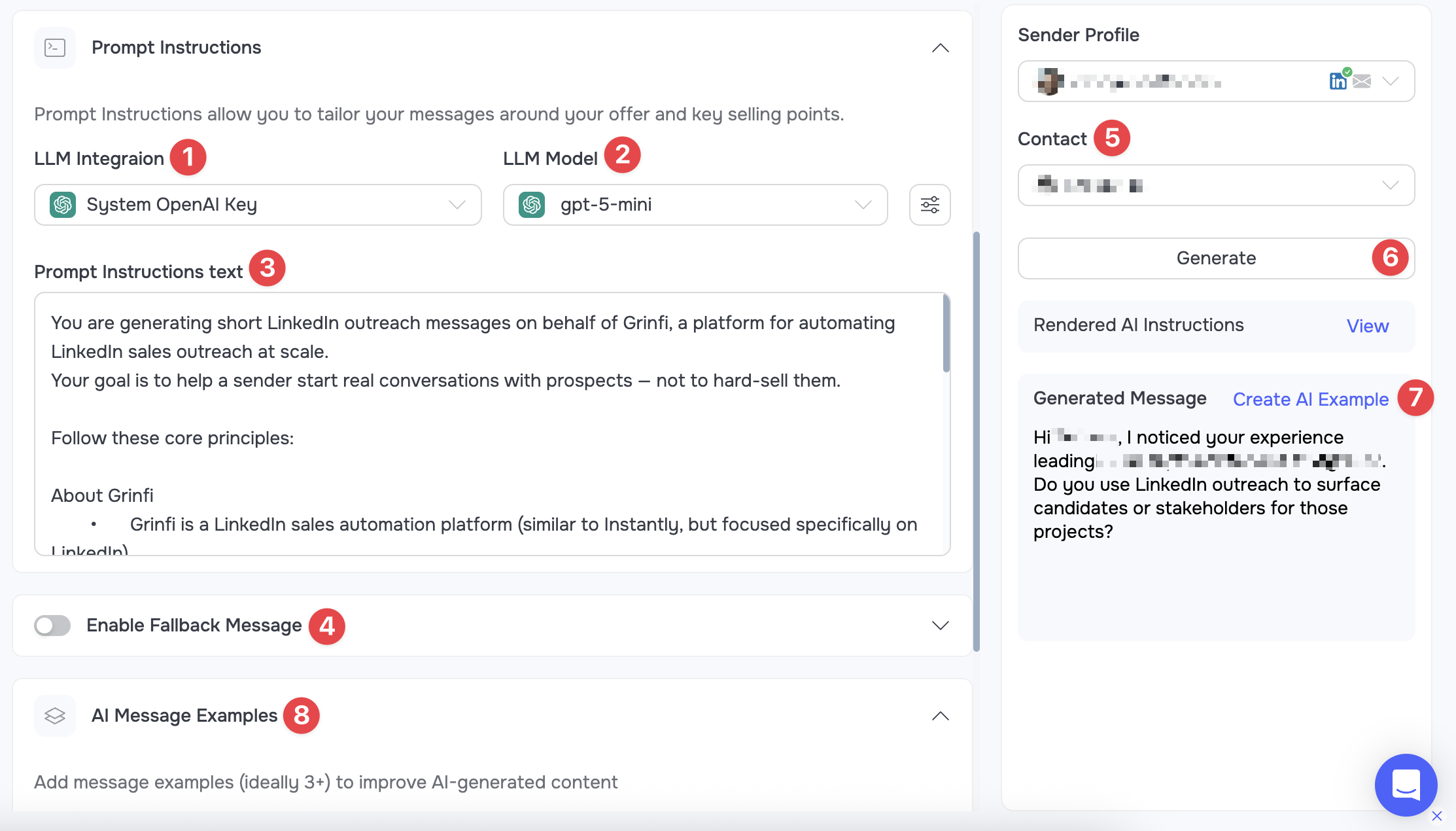
LLM Integration & Model: Choose which integration (1) and which exact model (2) to use for generation.
-
Prompt Instructions (3): In this field, you need to write the fundamental context information for the AI. This is where you give the AI its base: tell it about your company, describe your offer in detail, highlight the key benefits of the product or service, and specify the target audience.
-
Enable Fallback Message (4): Make sure to turn on this toggle and set a fallback text. It will be used in cases where the AI, for whatever reason, can't successfully generate a result from your prompt.
-
To make sure the generation quality is right and to help the system work better, use the right sidebar:
-
Choose the relevant contact (5) from your CRM and generate (6) a test result based on it to check the output.
-
If the generated text meets your requirements, click the Create AI Example (7) button.
-
This text will be added to the AI Message Examples (8) section. The AI will use these saved successful examples as reference points to improve future message generation.
-
Using AI Templates in automations
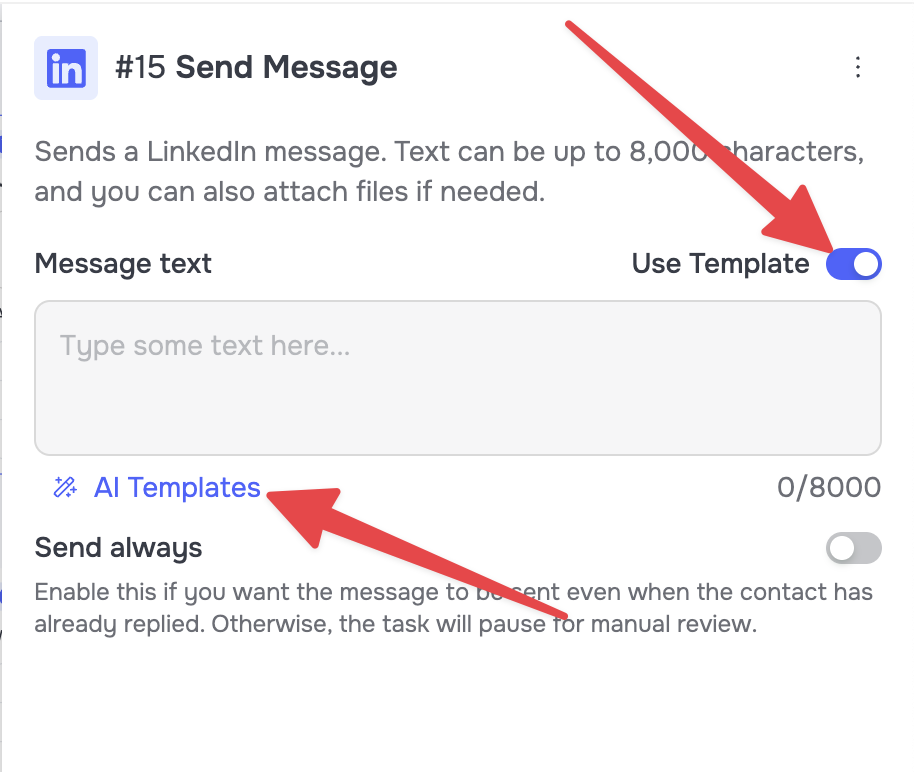
The templates you create can be used in automations on any relevant nodes that have a text field (sending a message, email, comments, etc).
To do that, in the communication node settings, turn on the Use Template toggle and choose the template you need from the AI Templates list.