In the visual automation builder, you have full control over how each contact moves. If a contact runs into an error or you need to change the course of their movement, you can manage their tasks directly from a specific node.
How to open the task management menu
The management functionality becomes available through a special modal window. To open it:
-
Find the node you need in the automation.
-
Click the clickable number next to the status (for example, In progress, Failed, or Canceled).
-
In the modal window that appears, you'll see detailed statistics: dates, task status, error reasons, the sender profiles that performed the task, and the list of contacts themselves.
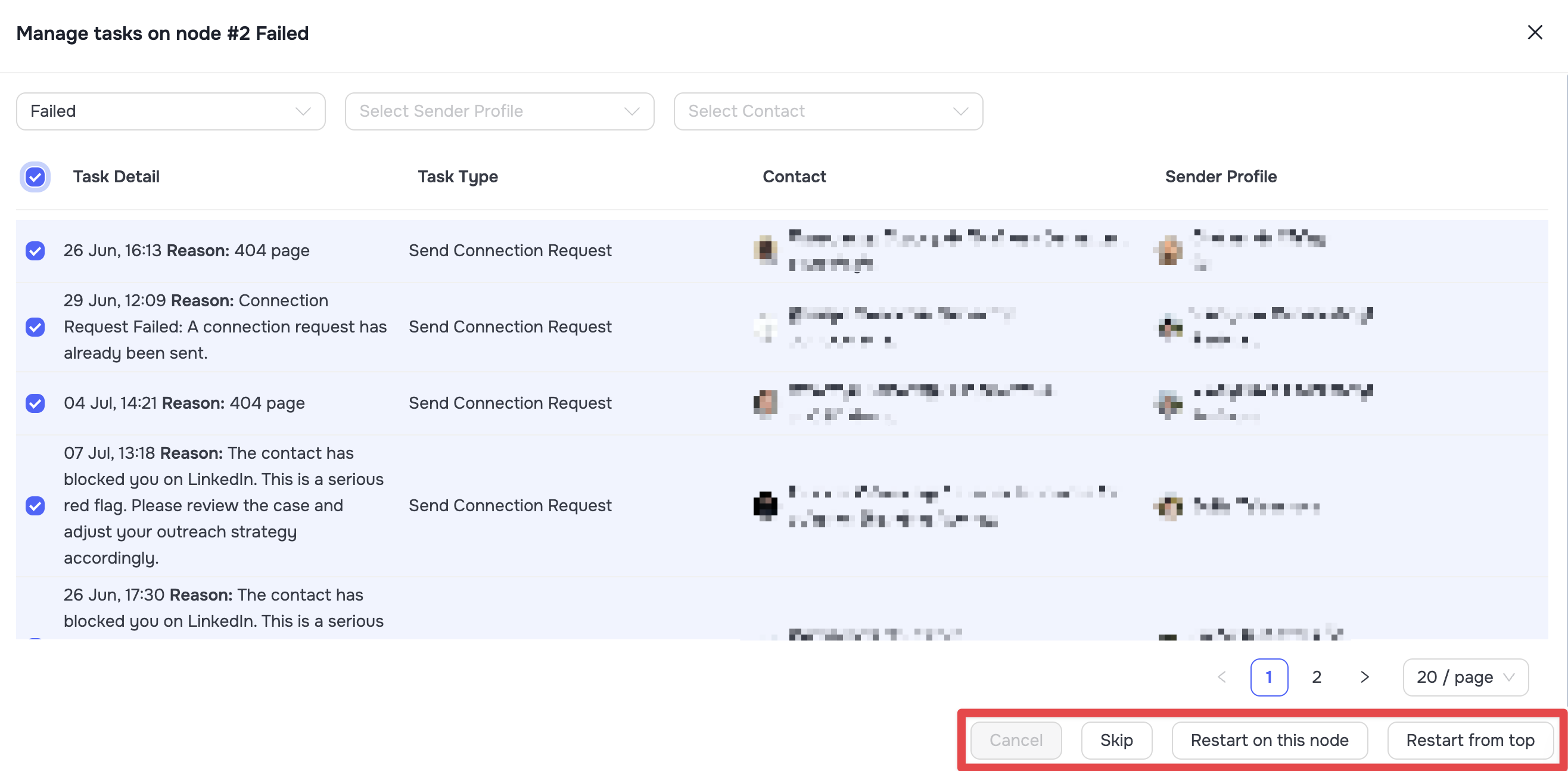
🟡 Note: The action buttons in the modal window stay inactive until you tick one or more contacts in the list. Also note that you can't open the restart menu from the starting segment node (the very first node in the automation, numbered #1).
Contact actions and what they do
Once you've selected contacts in the modal window, you can apply one of four actions to them:
-
Cancel: Completely stops execution of the current task and cancels further participation of the selected contacts in this automation (applies to contacts with the In progress status).
-
Skip: Skips the current node without executing the task and instantly moves the contacts to the next node in the chain (applies to contacts with the In progress status).
-
Restart on this Node: Re-runs the task for the contacts on the current node (applies to contacts with the Failed or Canceled status). If a contact has the In Progress status, you must first apply the Cancel action, refresh the page, and only then perform a restart on the specified node.
-
Restart from Top: Cancels the current task and redirects the contacts to the very beginning of the automation (to the first node after the segment). Applies to the Failed, Canceled, and In progress statuses.
System limitations of the restart function
-
Restart actions are available only for contacts with the In progress, Failed, and Canceled statuses.
-
For contacts that have already successfully passed the node (the Completed or Skipped statuses), the restart function isn't available on that same node.
-
If a contact has finished the automation (reached the end and has the Completed status on the End Automation node), the only way to bring them back into work is the Restart from Top function.