InMails are a premium format of personal messages on LinkedIn that lets you reach any LinkedIn contact directly, even if they are not a first-degree connection.
InMail limits and credits
Sending these messages is mostly available from profiles with an active LinkedIn Premium subscription. However, the feature is also partially available for basic free accounts.
🟢 Tip: The platform works most reliably and safely with senders that have a Sales Navigator subscription.
The number of credits available per month depends directly on your LinkedIn plan:
-
Premium Career: ~ 5 credits.
-
Premium Business: ~ 15 credits.
-
Recruiter Lite: ~ 30 credits.
-
Sales Navigator: ~ 50 credits (unused credits can roll over, up to a maximum of ~150).
-
Basic (Free profile): From ~ 5 to 15 credits (you can only send to contacts with Open Profile status).
How to send an InMail through Grinfi
You can use premium messages in two main ways: as part of a bulk automation and for one-to-one communication.
Through an automation (Bulk sending)
-
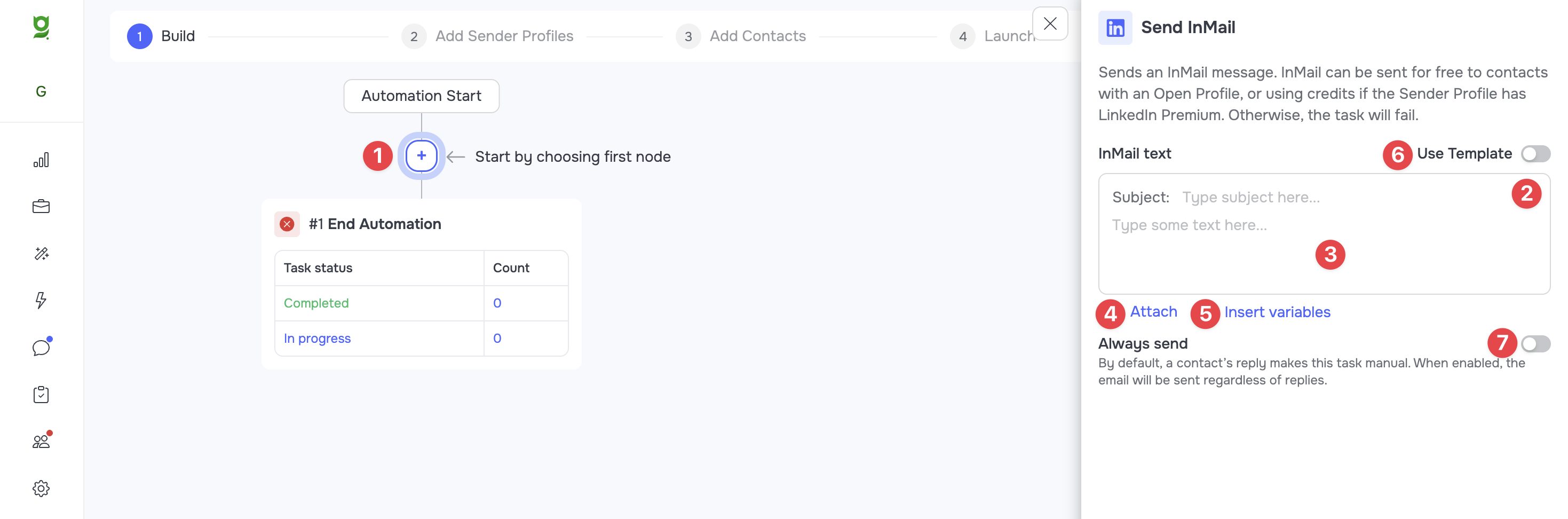
In the Builder workspace, click the add new node icon (1).
-
Select the Send InMail communication node.
-
Add the subject line in the Subject (2) field and the message text in the text field (3).
-
Use Attach (4) to add files to the message (maximum file size - 20 MB)
-
Optionally, use Insert Variables (5) to personalize the message, or apply a template you prepared in advance with Use Template (6).
-
The Send always (7) toggle, when switched off, stops the message from being sent if the contact has already replied. Turn the toggle on if the message must be sent regardless of a reply or of the Automation paused after reply status.
🟢 Tip: Plan your algorithm so that you spend credits wisely. The best practice is to send InMails only to contacts who ignored your connection request and ended up in the Not Connected branch (after the Wait for Connection trigger).
Before the Send InMail node, be sure to add a Condition Rules logic node and set a condition for having an **Open Profile (**required if your profile does not have a Premium subscription, optional in other cases). Send InMails exclusively down this branch (Rule #1) to optimize your credit usage.
Through Messenger (Individual sending)
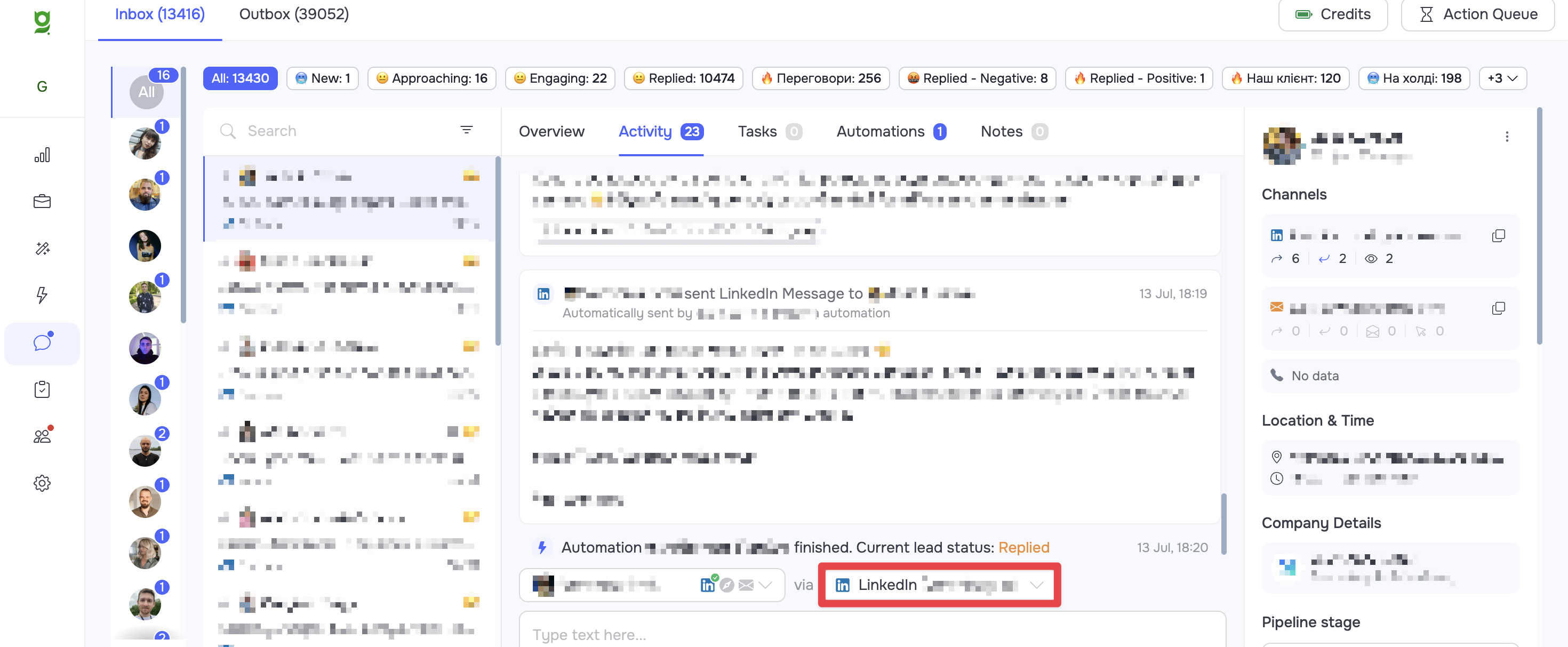
If you are running one-to-one communication, you can send an InMail straight from the conversation window.
-
Open the Messenger section and select the conversation with the contact you need.
-
Above the message input field, click the channel selector.
-
Select InMail from the list.
-
Enter the message subject and text, and send it to the contact.