Custom Fields (Variables) - are additional variables that you can create yourself to fill in specific information about your contacts, companies, or Sender profiles. Custom variables are used to enhance message personalization within automations.
1. Interface Management Overview (Settings Section)
All the variables you create are located in one place. To access them, open the left side menu, go to the Settings section, and select the Custom Fields tab.
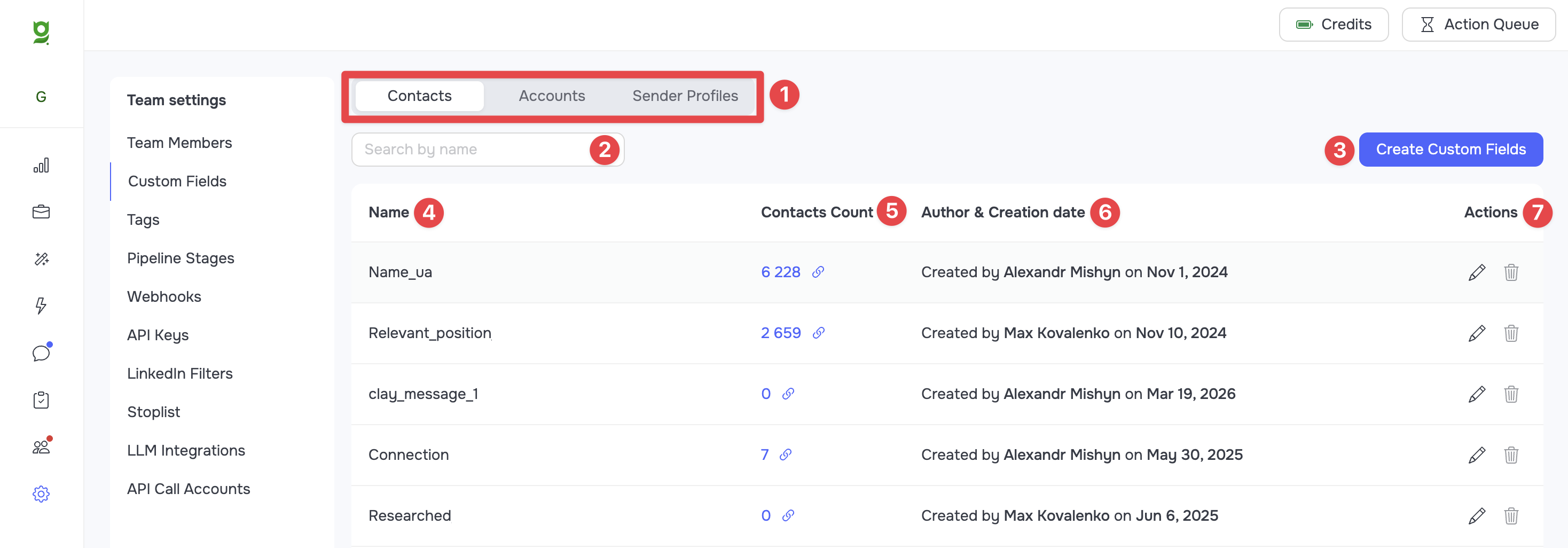
The section's interface contains all the necessary tools for creating and editing variables. Below is a detailed breakdown of each element:
-
Entity Tabs (Contacts / Accounts / Sender Profiles): Switchers that allow you to create and view variables separately for contacts, companies, or Sender Profiles.
-
Search by name: A search field to quickly find the required variable by its name.
-
Create Custom Fields: A button to add a new variable. Clicking it opens a modal window where you need to enter a name for the field and click Create.
🟡 Note: The variable name can only contain Latin letters, numbers, and underscores. Other symbols in variable names are not allowed. -
Name: A column displaying the names of all existing custom variables.
-
Contacts Count: The number of contacts (or companies) in whose cards the specific variable is already populated with data.
🟡 Note: The number is clickable. By clicking it, you will be redirected to the CRM showing all contacts (or companies) that have this variable filled out. -
Author & Creation date: Information regarding which team member created the variable and its creation date.
-
Actions: Tools for managing variables:
- Pencil icon: Allows you to edit the variable name.
- Trash bin icon: Permanently deletes the custom variable.
2. Populating Custom Variables with Data
The created variable must be filled with information so that the system has content to substitute when using it. This can be done in several ways:
Bulk Import via CSV File (For Contacts and Companies)
The most convenient way to add custom variables is to upload them via a CSV file directly when importing new contacts, or by using the Update function to update existing ones.
- In the CRM, go to the Imports section and select the CSV tab (the Import Contacts/Accounts or Update Contacts/Accounts function).
- Upload your spreadsheet, where one of the columns contains unique data for the custom variable.
- During the field mapping stage (Match fields), the system will show all your created custom variables at the bottom of the list, right after the system fields. Match your custom variable with the corresponding column from the file.
🟡 Note: Bulk population of custom variables can only be done by uploading a CSV file or using API calls. When importing directly from LinkedIn (Basic Search, Sales Navigator Search, or LinkedIn Activity), these fields cannot be populated automatically.
Individually in the CRM (For Contacts and Companies)
- Open the card of a specific contact or company.
- On the right side panel, find the Custom fields block.
- All your created variables will be displayed there. Click on an empty field, type the required value manually, and it will be saved automatically.
Populating Custom Variables for Sender Profiles
If you created a custom variable specifically for a Sender Profile:
- Go to the Sender Profiles section.
- Click the Settings button next to the required account.
- In the profile settings, find the Custom fields block and enter the necessary value.
3. Using Custom Variables in Automations
The main purpose of custom variables is dynamic text insertion within your outreach campaigns.
When creating or editing an automation in the builder, within the relevant node (for example, Send Message):
- Click the Insert variables button above the text entry field.
- In the modal window, select the required tab (Contact, Account, or Sender Profile).
- Scroll down the list - there you will see all your custom variables.
- Click on the required variable, and it will be added to your message text in the format:
#{{ field_name }}.
When the message is sent, the system will automatically retrieve the value from the contact card (or company card) and insert the specific value that was uploaded or entered for that particular record.
🟡 Note: If a variable happens to be empty for a contact, the system will simply skip it without inserting anything (leaving a blank space).
🟢 Tip: If you need to substitute alternative text in case a variable is empty, use the following formula: {% if custom_field %}#{{ custom field }}{% else %}text{% endif %}
In this formula:
- Instead of
custom_fieldinsert the name of your variable. - Instead of
textinsert the fallback text to be used if the custom variable is empty. You can use either static text or another variable in the#{{ field_name }}format.