The Stoplists function allows you to forcefully stop, cancel, and block any automated activities for a specific list of contacts or companies.
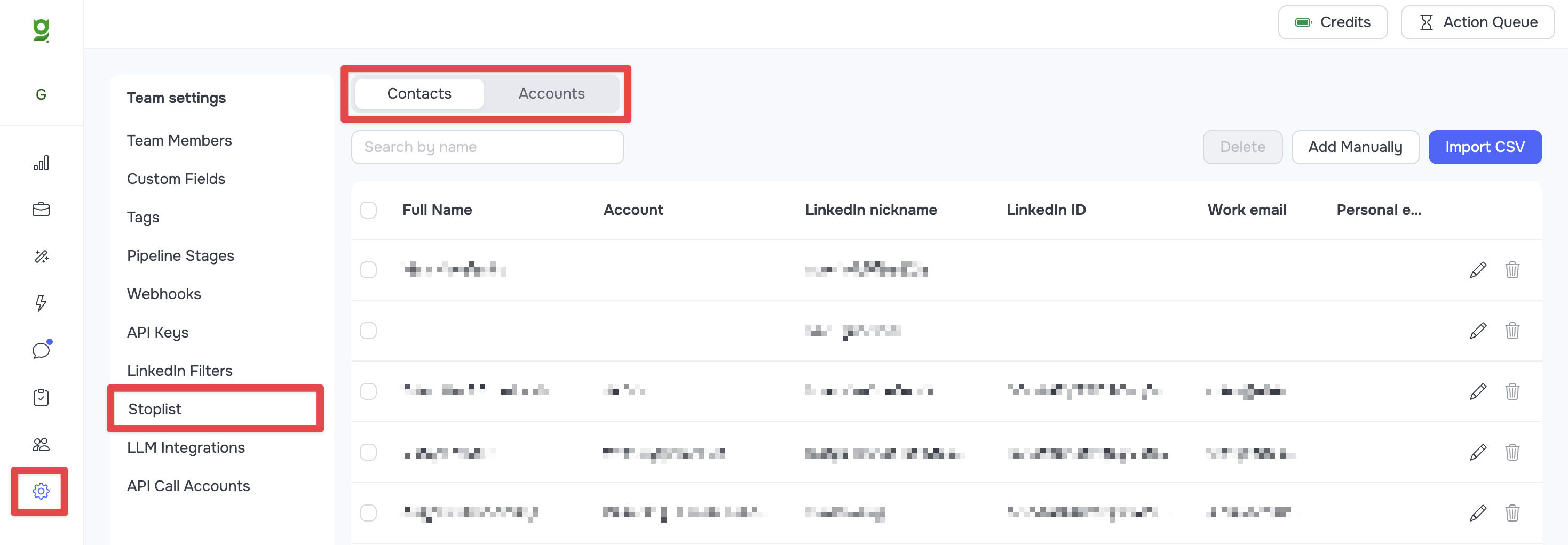
To open the stoplist management window, navigate to the side panel and go to Settings ➔ Stoplists
This section is divided into two tabs: Contacts (for individual people) and Accounts (for entire companies).
How the Blocking Mechanism Works
- For existing profiles: If a contact or company you add to the stoplist already exists in your CRM database (even if they are currently in an active automation), all activities for them are terminated immediately, and their cards are automatically deleted from the CRM.
- For future imports: If an attempt is made later to upload this profile during a new import, the profile will receive a
blacklistedstatus in the import statistics and will be blocked from entering the CRM.
1. Contact Stoplist (Contacts Tab)
In this tab, you manage the blacklist for individual users. You can add contacts in two ways:
Adding Manually
Used when you need to quickly block one or a few individuals.
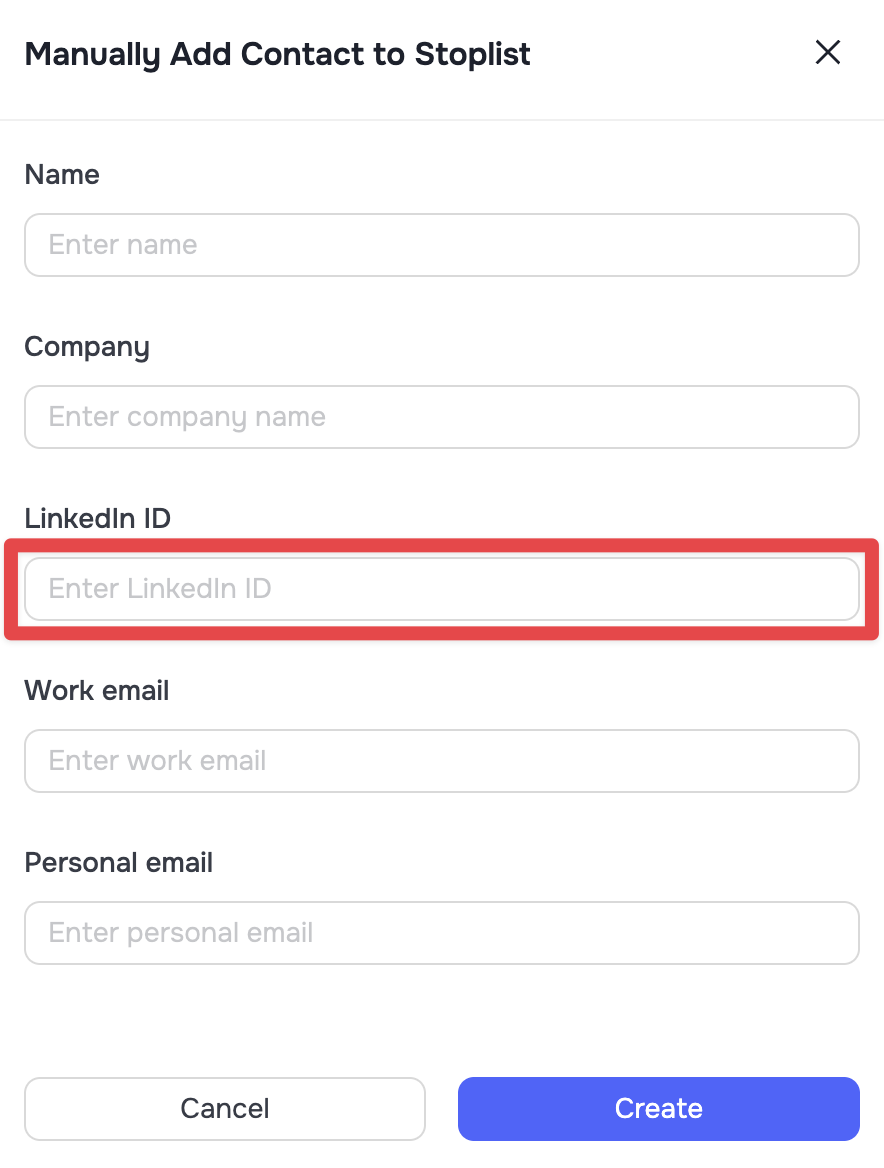
- Click the Add Manually button in the upper-right corner.
- In the modal window, fill in the contact details.
- Complete the LinkedIn ID field: This is the only critical field required. You must paste a direct link to the contact's LinkedIn profile, their LinkedIn ID, or their Sales Navigator ID. The system uses this unique parameter to guarantee the contact is recognized and blocked.
- Other fields (Name, Company, Work Email, etc) are optional and can be left blank.
Bulk Upload via CSV
If you have a list of contacts that need to be blocked in bulk, use the CSV upload option.
- Click the Import CSV button.
- Upload your CSV file (maximum size is 15 MB, up to 15,000 rows).
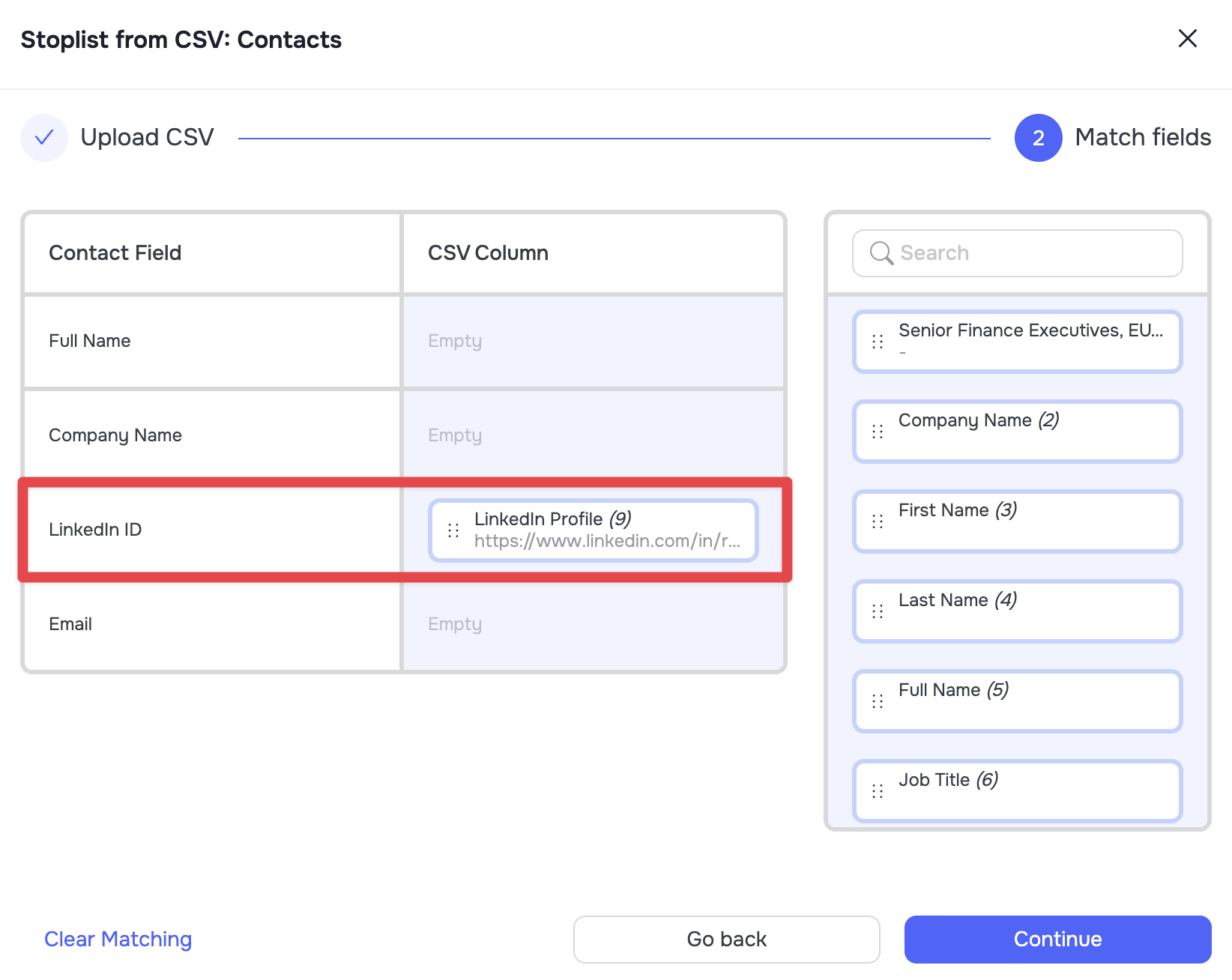
- During the Match fields stage, make sure to map the system field LinkedIn ID to the corresponding column in your spreadsheet. All other fields are optional and can be left unmapped (left Empty).
2. Company Stoplist (Accounts Tab)
If you need to block communication with all employees of a specific organization, add it to the Accounts tab. The operational mechanics here are identical to those for contacts.
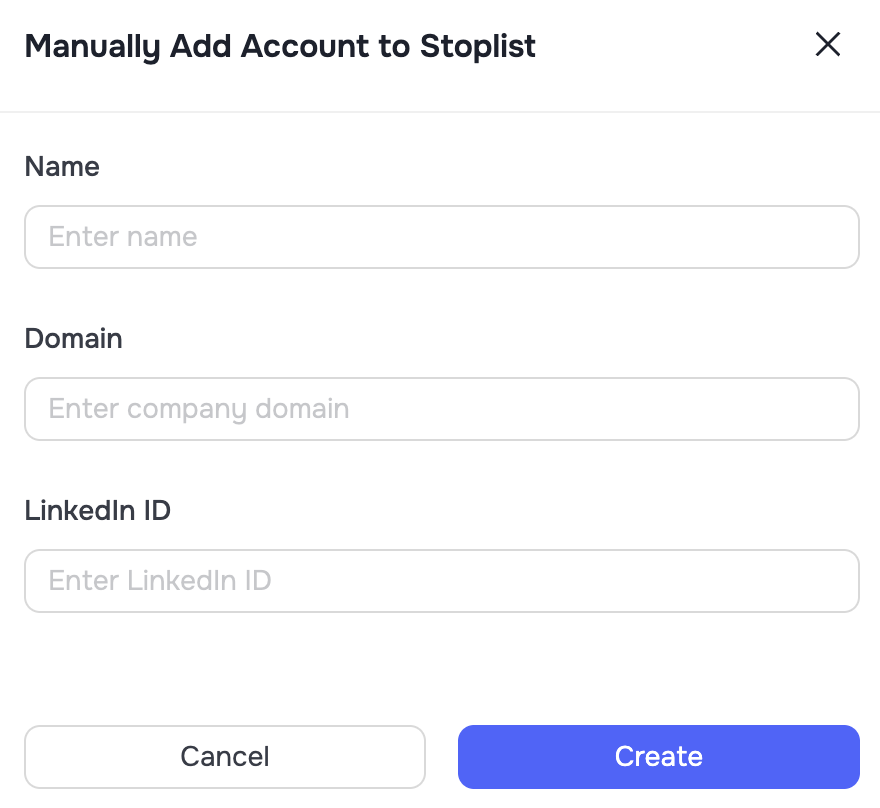
Adding Manually or in Bulk
Similarly, you can click Add Manually or upload a CSV file. To successfully block a company, you only need to provide one of three parameters: Company Name, Domain, or LinkedIn ID.
 🔴 Identification Specifics via Company Name: Keep in mind that different companies on LinkedIn often share identical names.
When blocking a company solely by its name (the Company Name field), the system will block absolutely all companies that match that exact name.
🟢 Tip: The most reliable way to block a company is by using its LinkedIn ID parameter.
Managing Stoplists Data
All added contacts and companies are displayed as a list within their respective tabs. You have full control over these records:
- Editing: Click the pencil icon next to a contact or company to open and edit its record.
- Unblocking (Removing from Stoplists): Select the desired records using the checkboxes and click Delete for bulk removal, or click the trash bin icon next to a specific contact or company to remove it individually.
Alternative Method for Bulk Upload
You do not necessarily have to go directly to the Stoplists section for bulk uploads. This can also be done from the import management panel:
- Go to the side panel and navigate to CRM ➔ Imports.
- Open the CSV dropdown menu on the top panel.
- Select the Contacts stoplist or Accounts stoplist option and upload your file following the standard procedure. The result will be identical.