The Imports tab is a single control center for downloading and updating data in the CRM. Here you can import data from LinkedIn, upload your own CSV files, and update existing contacts and companies.
Imports Page Overview
The page interface is visually divided into two main sections:
- Import type selection menu (1): Located on the top navigation bar. Here, you choose the necessary tool to launch a new import.
- Import history (2): The central field displays a list of all previously launched processes, their current status, and detailed information.
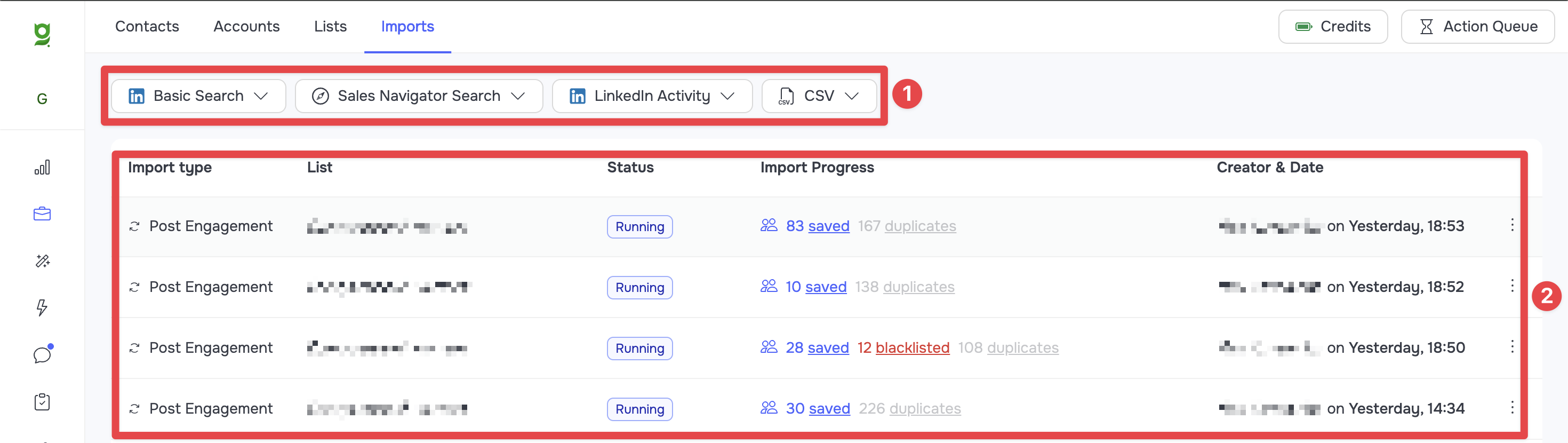
Import History and Progress
The table on the main page allows you to monitor the importing process in real time. For each import, its type, the list for saving, and the current status are indicated (Running - in progress, Completed - successfully finished, Error - stopped due to an error).
The Import Progress block is a clickable statistics section that shows the statuses of the processed contacts or companies:
- Queued: The number of profiles currently in the queue for importing.
- Saved: The number of successfully saved new contacts or companies.
- Duplicates: The number of duplicates found (contacts that already exist in your CRM).
- Blacklisted: Number of skipped profiles because they are included in stoplists.
- Errors: The number of profiles that failed to upload.
Importing from LinkedIn Search (Basic Search and Sales Navigator)
This tool allows you to automatically collect contacts or companies from LinkedIn search results. When you click the desired tool in the top menu, a list of available search subtypes will expand:
-
Basic Search:
- Contacts search: Import contacts from standard LinkedIn search results.
- Accounts search: Import companies from standard LinkedIn search results.
-
Sales Navigator Search:
- Leads search: Import Sales Navigator search results.
- Saved leads search: Import from a saved search query.
- Leads list: Import from a saved lead list in Sales Navigator.
- Accounts search: Import from the company search page.
- Saved accounts search: Import from a saved company search query.
- Accounts list: Import from a saved company list.
🟢 Tip: LinkedIn search algorithms allow you to view and import a limited number of contacts in a single search query (up to 1,000 in Basic Search, up to 2,500 in Sales Navigator, even if the search counter shows a higher number of results). Build your search queries so that the number of results does not exceed these limit values.
How to Launch an Import
After selecting the required subtype, a settings modal window will open. In it, fill in the mandatory (first 3) fields:
- URL: Paste the copied link to your LinkedIn / Sales Navigator search here.
- List: Select the CRM list where the profiles will be saved.
- Sender Profile: Select the working account on whose behalf the system will perform this process.
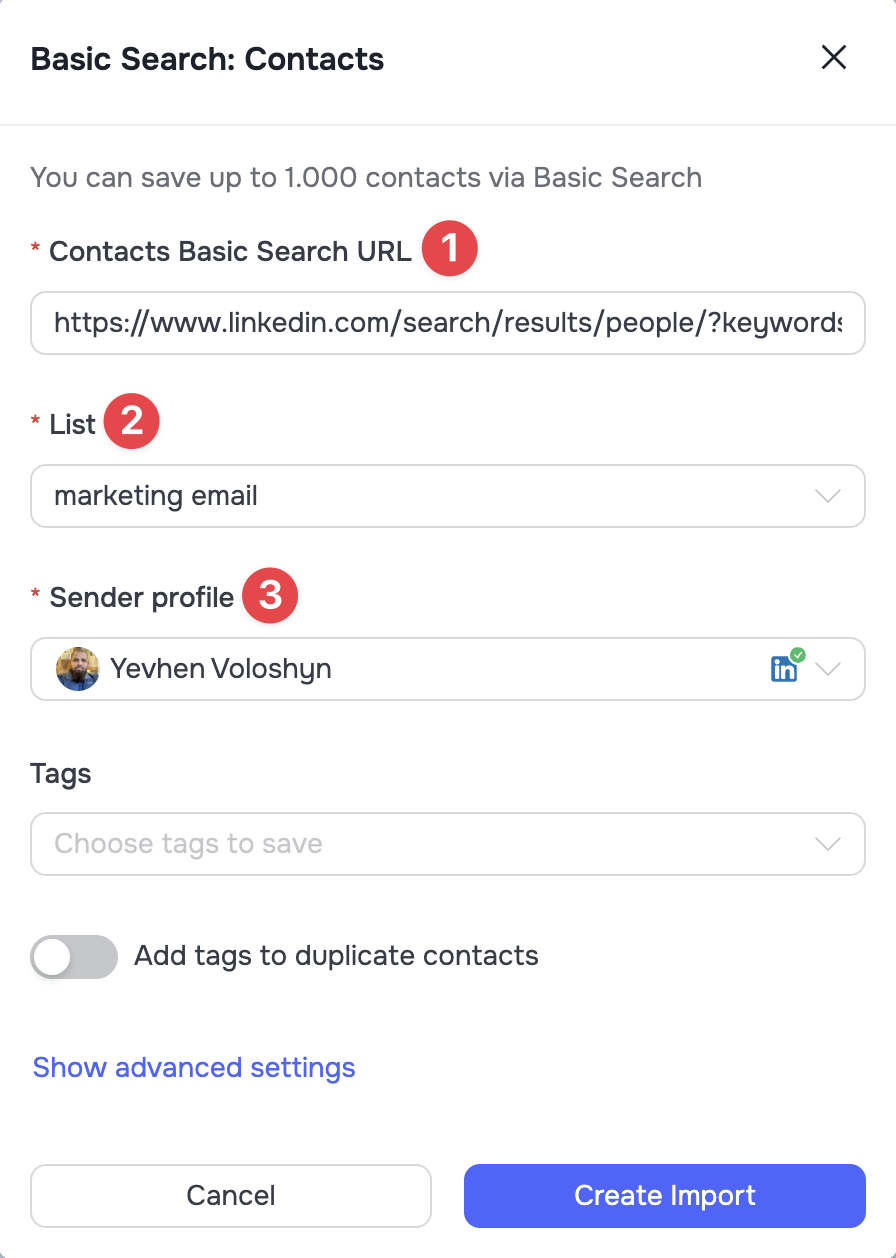 🟡 Note:
- In a Basic Search import, make sure to select the exact Sender Profile from which the search query was formed.
- In a Sales Navigator Search import, make sure to select a profile that has an active Sales Navigator plan connected (such profiles are marked with a blue compass icon).
🟢 Tip: The rest of the settings in this window are optional. Learn about their purpose in the section below - "Additional and Advanced Settings".
LinkedIn Activity Import
This block is designed to collect a warm audience based on your network and interactions.
My Network
Imports all people who are in your connections (1st-degree connections).
- Select the My Network import type.
- Select the List for saving.
- Specify the Sender Profile whose contacts need to be imported.
My Conversations
Imports exclusively those people with whom the selected Sender Profile has open dialogues (chat history) on LinkedIn.
- Select the My Conversations import type.
- Select the List for saving.
- Specify the Sender Profile from which contacts need to be imported.
Post Engagement
Collects the audience that reacted to a specific publication.
- Select Post Engagement.
- Paste the URL of the publication (this can be a post by any LinkedIn user).
- Select the type of reaction you are interested in: Likes, Comments, Reposts.
- Select the List for saving and the Sender Profile that will import the data.
🟢 Tip: The rest of the settings in this window are optional. Learn about their purpose in the section below - "Additional and Advanced Settings".
Importing Data via CSV Files
For working with your own databases, importing using CSV files is available.
🟡 Note: The file size must be no more than 15 MB and contain no more than 15,000 rows.
How to Launch an Import
- Select CSV ➔ Import contacts / accounts in the menu.
- In the modal window, upload your CSV file and select the List for saving.
🟢 Tip: The rest of the settings in this window are optional. Learn about their purpose in the section below - "Additional and Advanced Settings". 3. Click Continue to move to the field mapping stage (Match fields). Here you need to specify to the system which column from your file corresponds to the system field.
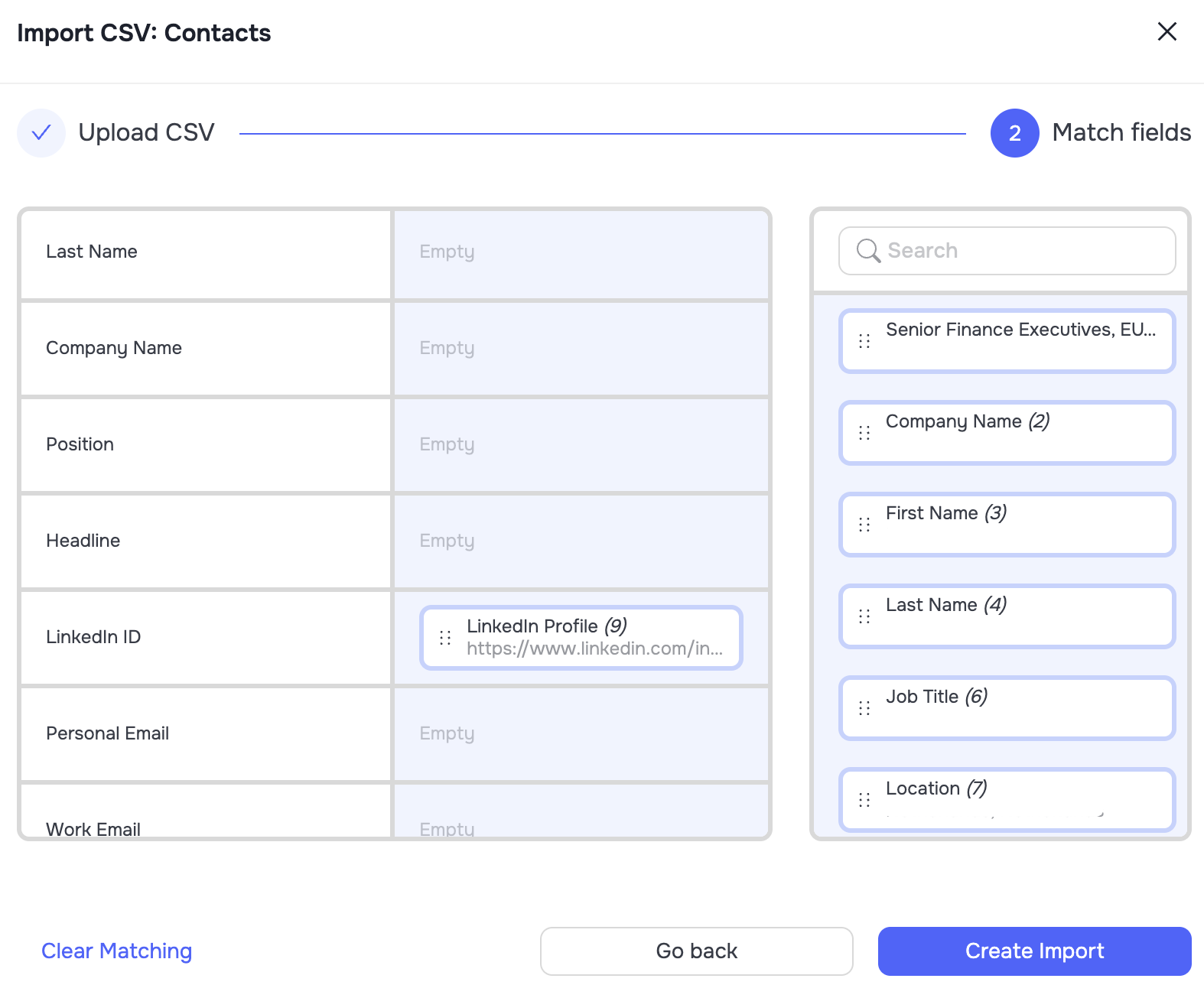 🔴 Critically important regarding the LinkedIn ID field: The system field LinkedIn ID is key for identification. Be sure to map it to the corresponding column in your file. The following formats are accepted in the cells of this column:
| Format | Example |
|---|---|
| Direct link | https://www.linkedin.com/in/yevhen-voloshyn/ |
| LinkedIn Nickname | yevhen-voloshyn |
| SalesNavigator-ID | ACoAADljoTIBysr2H9MUpkYs1S1uILsMdsyXs58 |
| LinkedIn-ID | ACoAADljoTIBysr2H9MUpkYs1S1uILsMdsyXs58 |
Rules for other fields:
- All other fields (Name, Company, Email, etc) are optional.
- If your table does not have this information, leave the corresponding mapping empty. In this case, the system will automatically find and fill in the missing data during the import.
- All cells in the mapped column of the CSV file must be filled. If a column is mapped but contains empty cells, the system will not look up this information but will simply write an empty value (null) into the CRM.
🟢 Tip: The rest of the settings in this window are optional. Learn about their purpose in the section below - "Additional and Advanced Settings".
Additional and Advanced Settings
In each import modal window (both for LinkedIn and CSV), optional fields and an Advanced settings block are available to you. They are not mandatory to fill out, but they provide flexible control over the database during upload:
- Tags: A field for entering tags that will be bulk-assigned to all new contacts from this import.
- Add tags to duplicate contacts: If you enable this toggle, when the system detects a duplicate (a contact that is already in the database), it will not create a new card but will simply add the tags you specified in the import settings above to the existing one.
- Move to list if already saved: If the system finds a duplicate that is already saved in "List A", and you are importing into "List B", activating this function will force the system to move this contact to the new list. The contact's data will not be overwritten. It will simply change its folder.
- Repeat Import Period: Allows you to schedule automatic repetition of this import (e.g, weekly). The system will regularly check the source and import only new contacts that start matching the search criteria.
Updating Existing Data via CSV File
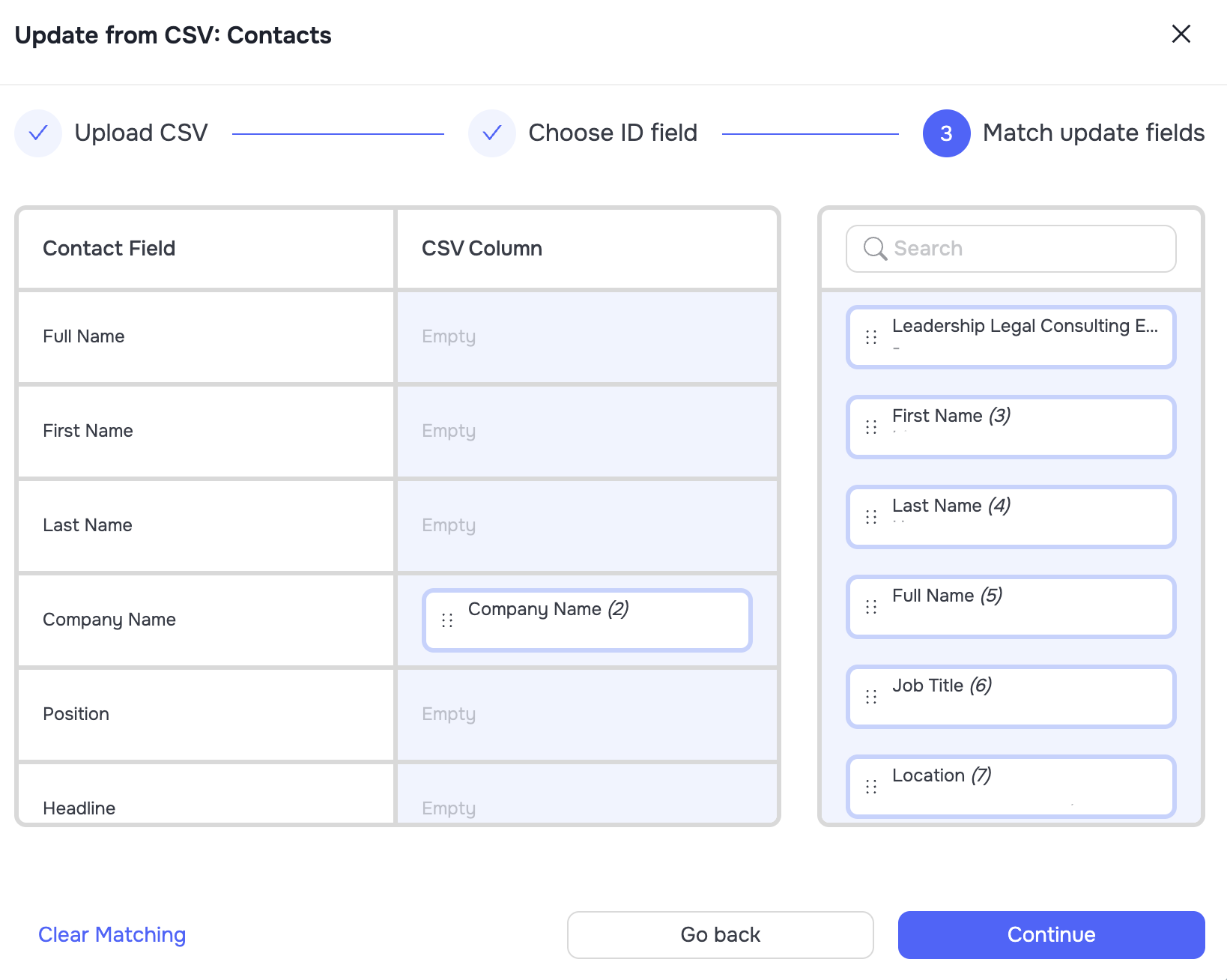
The Update Contacts and Update Accounts functions are used when it is necessary to bulk-update or supplement information in already existing CRM cards (e.g, to upload new email addresses, update job titles, add phone numbers, etc).
For a successful update, your table must contain a column with a key identifier (LinkedIn ID, System ID (the platform's internal identifier), or Email address) by which the system can accurately recognize exactly which contact or company needs an information update. The file must also contain columns with the new data itself.
- On the top panel, select the Update Contacts / Update Accounts option from the CSV dropdown menu.
- Upload the prepared CSV file with the updated data.
- In the System field dropdown, select the key identifier (LinkedIn ID, Grinfi ID, or Email) by which the system will search for matches in your database.
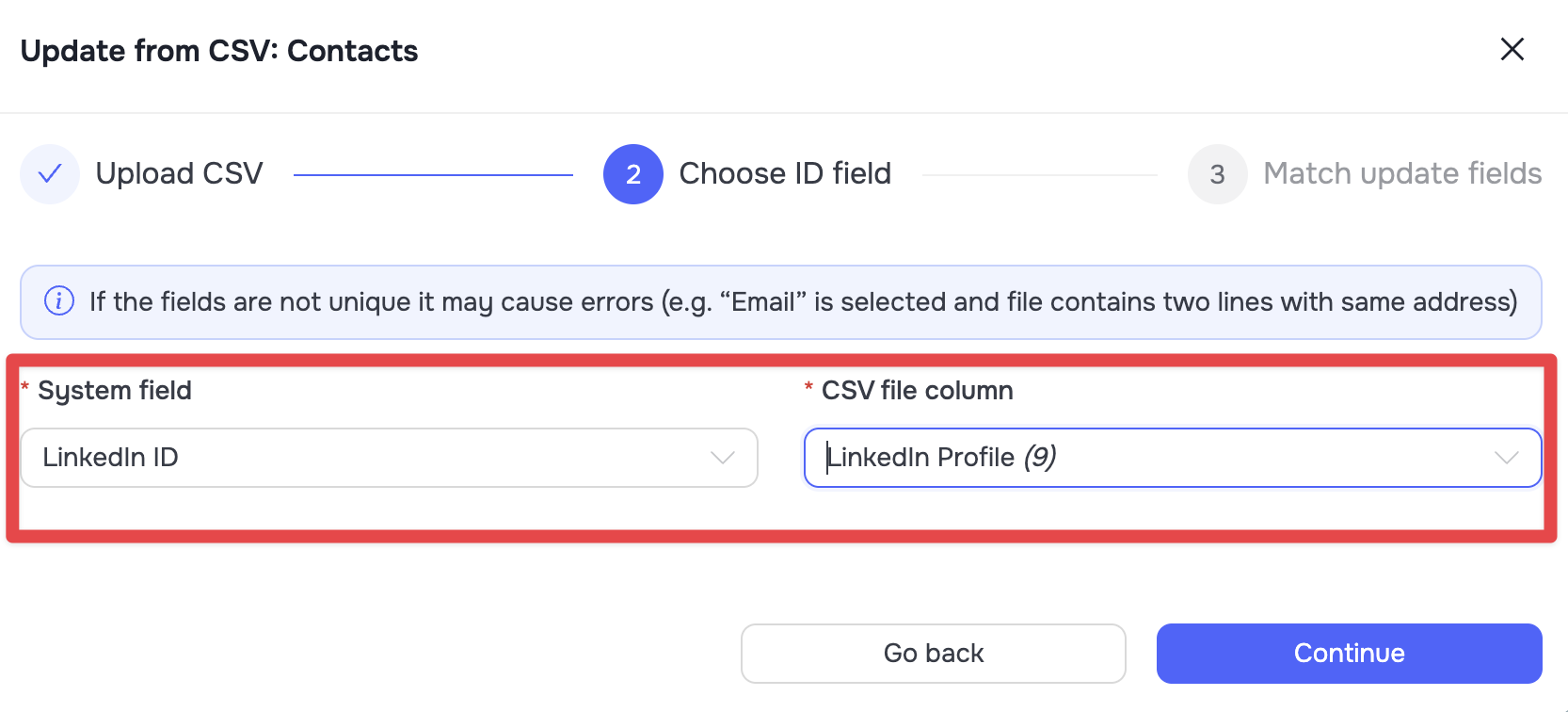 4. At the field mapping stage (Match fields), select only those columns from which the information needs to be updated or added. The system will overwrite or supplement the data in the existing cards.
Uploading Stoplists
Through the CSV menu, you can also bulk upload lists of contacts or companies to the global stoplist (Contacts Stoplist, Accounts Stoplist). This feature is used to ensure that specific people or companies are excluded from automations.
Learn more about this functionality in the article: [Stoplists: How to Block Contacts and Companies in Grinfi]
Import Schedule and Processing Speed
- CSV imports: Take place directly on the platform's servers. Usually, they are processed very quickly - from 2 to 30 minutes, depending on the file size and platform load.
- LinkedIn imports: All data collection processes on LinkedIn are executed by the Sender Profile. Import speed depends on the profile's working schedule (Server Schedule) and daily limits. If the profile is in Out of Schedule status or has reached its configured limit, the import will be paused. It will automatically resume as soon as the Sender Profile enters a new working cycle.