The Grinfi CRM system offers a powerful filtering tool that allows you to flexibly segment your database, find the necessary contacts for targeted interactions, and form the most relevant audiences.
You can use both the basic filter panel and the advanced builder to construct complex selection logic.
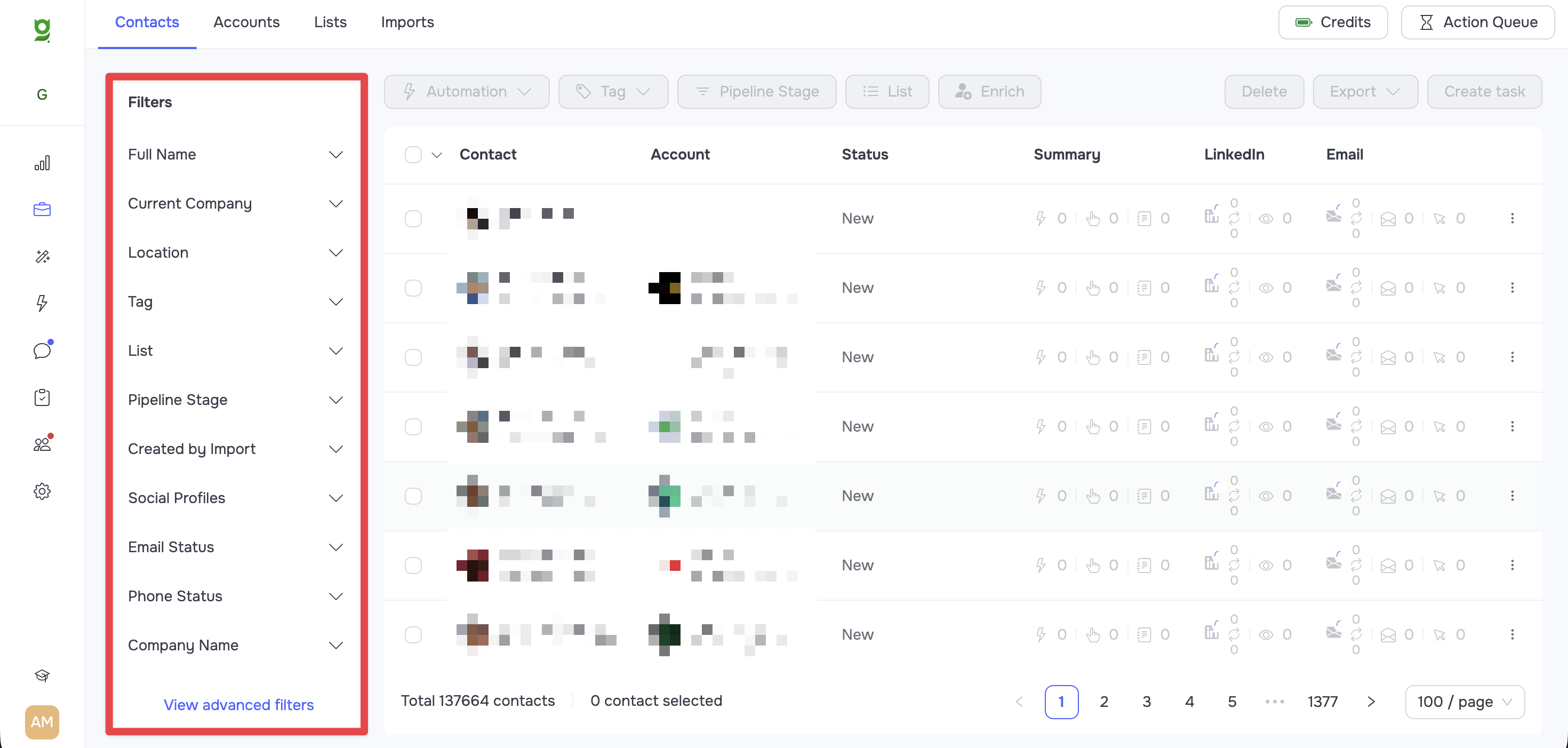
Filter Combining and Query Logic
All standard filters on the left panel can (and should) be combined with each other. You can set multiple parameters simultaneously to narrow down your search circle as much as possible.
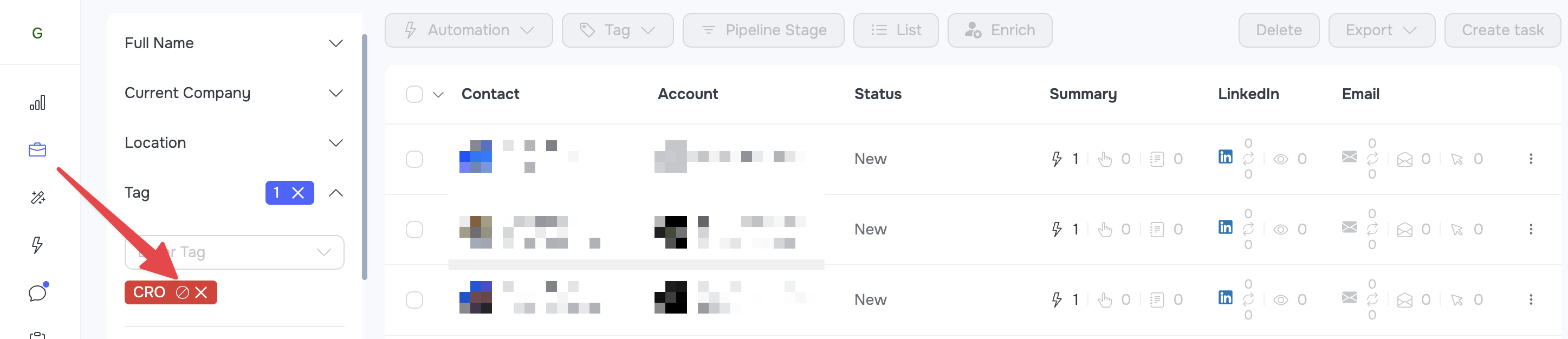
For each applied filter, an exclusion rule can be used by clicking the ⊘ button. Example of how this mechanism works:
- If you select the tag "CRO" from the menu, the system applies the filter and shows all contacts that have this tag.
- If you then click the ⊘ symbol next to the applied filter, its logic changes to the opposite (Exception)- the system will show you all contacts in the CRM that do not have this tag.
 🟡 Note: All complex filters that contain multiple fields for entry (e.g., Experience, Education, Activity, etc.) do not require you to fill out absolutely every single field. The filter will work successfully even if only one parameter is entered. All other fields within such a filter are optional and are designed for refining the query.
🟢 Tip: When building complex filter combinations in the basic filter panel, always analyze the logic of their intersection. The algorithm combines different filter categories using logical AND/OR/NOT. After building a filter combination, click on View Advanced Filter at the bottom of the filter panel to ensure the correct application of logical operators.
Contact Filters (Contacts Tab)
Personal, Contact, and Professional Data
-
Full Name: Search by the contact's first and/or last name.
-
Current Company: Search by the current company where the contact works.
-
Location: Filtering by geolocation.
-
Social Profiles: Search by the availability of accounts: Has LinkedIn Profile, Has Facebook Profile, Has X (Twitter) Profile.
-
Email Status: Filtering by email availability (Has Work Email, Has Personal Email).
-
Phone Status: Filtering by phone number availability (Has Work Phone, Has Personal Phone).
-
Position: Search by the exact job title.
-
About: Search by keyword in the "About" section of the LinkedIn profile.
-
Experience: A complex filter for searching by career history. It allows you to specify exact parameters:
- Company name: Name of the company.
- Description: Keywords in the description of job responsibilities.
- Location: Location of the workplace.
- Position: Exact job title.
- Employment type: Type of employment.
- Start date / End date: Date ranges for the start and end of work in this position.
-
Education: Detailed search by educational background. It includes the following fields for selection:
- Degree: Academic degree obtained.
- Description: Additional educational details or description.
- Field of study: Area of study or specialization.
- School name: Name of the educational institution.
- Start date / End date: Period of study.
-
Skills: Search by the skills specified in the profile.
-
Connections: Filtering by the range of the number of connections on LinkedIn.
-
Followers: Filtering by the range of the contact's follower count.
-
Premium Features: Search by account status: Open profile, Verified profile, Has premium.
Content Metrics (Posts)
This block searches for contacts based on engagement and the content of their publications on LinkedIn.
- Comments number: Filtering by the range of the number of comments under a publication.
- Reactions number: Filtering by the range of the number of reactions under a publication.
- Content: Search for contacts whose publications contain a specific word or phrase.
- Posted at: Search for contacts who made posts within the specified date range.
Internal Segmentation
- List: Displays contacts located in the specified list.
- Tag: Selection of contacts by assigned internal tags.
- Pipeline Stage: Filtering contacts by their current pipeline stage.
- Created by Import: Selection of contacts that were added through the selected import.
- Company Name: Search by the name of the employer company.
- Last Enrich At: Filtering by the date when the contact's profile was last enriched with data.
- Created At: Filtering by the creation date of the contact card in the CRM.
- Custom Fields: Search by specific values of your custom variables.
- Unread counts: Filtering contacts by the number of unread messages.
Deep Filters: Automation, Activity, and Markers
1. Automation: Tracking status in automations.
- Enter Automation: Selecting a specific automation.
- Enter Segment: Selecting a segment within the automation.
- Enter Sender Profile: Selecting the sender profile with which the contact interacts.
- Enter Status: The current status of the contact.
- Period: The time period during which the contact acquired a status or participated in an automation.
2. Activity: Detailed log of system events.
- Type: Event type (e.g, Email sent, Contact created, LinkedIn message replied).
- Sender Profile: The sender profile from which the activity occurred.
- Automation: The automation within which the event took place.
- Segment: The automation segment.
- Node ID: The identifier of a specific automation node.
- User: The system user responsible for the event.
- Created At: The date and time when the activity occurred.
3. Markers: System counters and timestamps of interactions. Select a marker and define a numerical range or date range. Available markers:
- Last Message Type: Type of the last message.
- First LinkedIn Message Sent At: The date or range of sending your first message on LinkedIn.
- Last LinkedIn Message Sent At: The date or range of sending the last message on LinkedIn.
- Count of Sent LinkedIn Messages: The total number of sent messages on LinkedIn.
- Count of Inbox LinkedIn Messages: The number of incoming messages from the contact on LinkedIn.
- Count of Read LinkedIn Messages: The number of read messages on LinkedIn.
- Count of Clicked LinkedIn Messages: The number of link clicks in your LinkedIn messages.
- First Email Message Sent At: The sending date of the first Email.
- Last Email Message Sent At: The sending date of the last Email.
- Count of Sent Email Messages: The number of sent Emails.
- Count of Inbox Email Messages: The number of incoming Emails from the contact.
- Count of Read Email Messages: The number of read Emails.
- Count of Clicks in Email Messages: The number of link clicks in Emails.
- Unsubscribed Emails At: The date when the contact unsubscribed from the mailing list.
- Marked as Attention Needed At: The date when the contact received the status of requiring attention.
Account Filters (Accounts Tab)
The Accounts section has its own adapted filter panel. Each filter is responsible for a specific company parameter.
- Company Name: Search by the official company name.
- Domain: Search by the corporate website domain.
- Social Profiles: Filtering companies by the presence of public pages: Has LinkedIn Profile, Has Facebook, Has X (Twitter).
- Headquarter Location: Filtering by the country or city where the main office is located.
- Company Industry: Search by the business's field of activity.
- Employees Range: Selection by the official company size range (e.g, 11-50, 51-200 employees).
- Followers Count: Filtering by the number of followers on the company's LinkedIn page.
- Employees on LinkedIn Count: Selection by the actual number of company employees on LinkedIn.
- Year Established: Search by the founding year of the organization.
- Specialities: Search by key specializations.
- Lists: Displays companies added to the selected list.
- Tag: Selection of companies by assigned internal tags.
- Created by Import: Filtering companies that were created or added during a specific import.
- Pipeline Stage: Selection of companies by the current sales pipeline stage.
- Activity: Tracking system events at the company level (has the same parameters as Activity in contacts).
- Markers: Filter by interaction metrics and dates related to the company as a whole.
- Created At: The date and time the company card was added to your CRM.
Advanced Filter
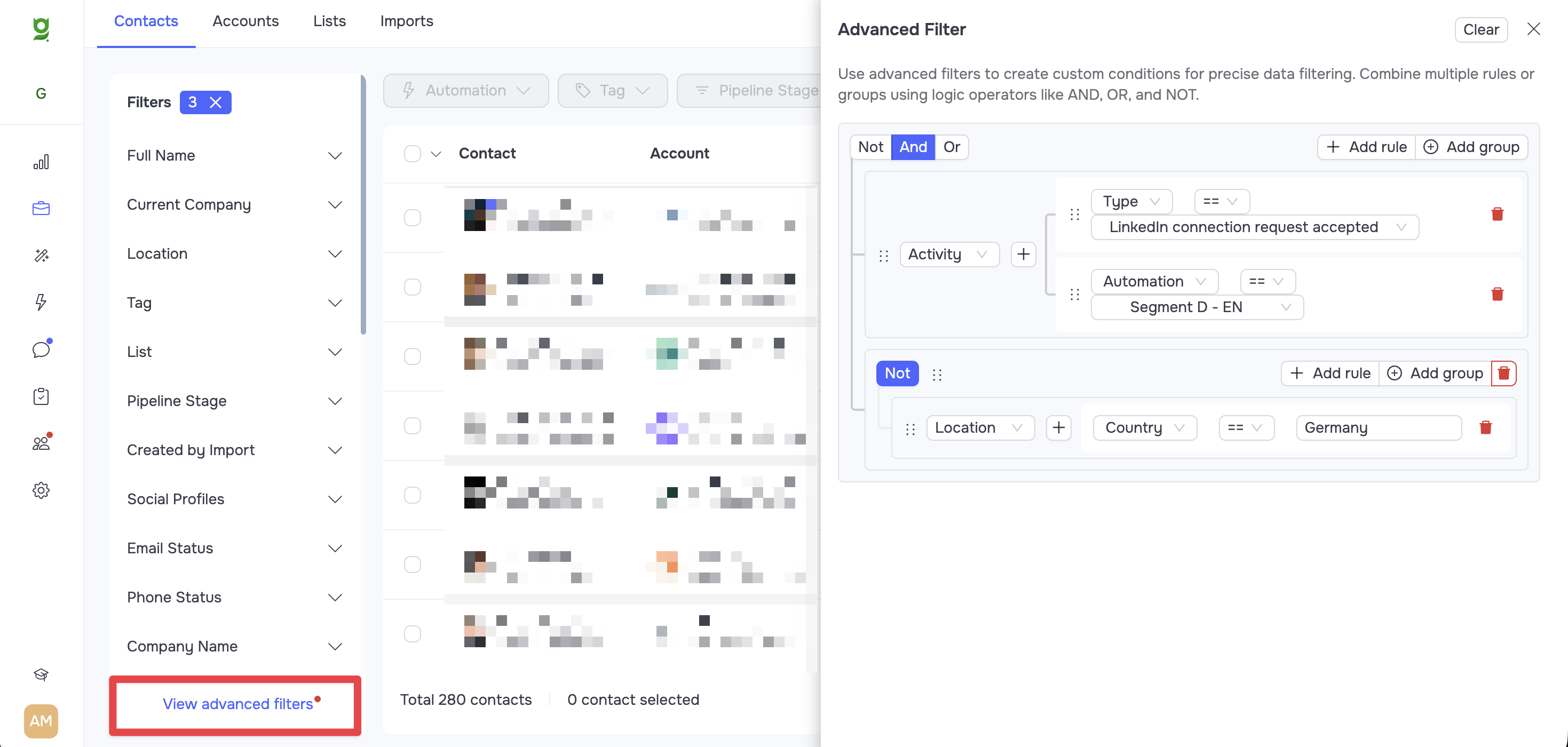
If you need to build a complex query with multi-level conditions and exclusions, use the Advanced Filter. It allows you to create precise selections using logical operators.
To open it, click the View Advanced Filter button in the lower-left corner of the screen.
Rules and Groups
In the advanced filter, you work with two entities:
- Rule: This is a single condition for a specific field.
- Group: This is a container where you can place multiple rules and set a common logic for them.
Logic Operators
For each group or combination of rules, you set a main operator:
- AND: The contact must match all rules.
- OR: The contact must match at least one rule.
- NOT: Strict exclusion. The contact must not have the specified parameters.
Comparison Operators
When you create a specific rule and select a field, you need to specify a matching condition. The system offers the following operators:
==(Exact match): The value must match character for character.!=(Not equal to): The value must not be identical to the entered text.Contains: Searches for a part of a word or phrase.Not contains: Excludes contacts containing the specified word or part of a word.Is empty: Finds contacts where the field is blank.Is not empty: Знаходить контакти, у яких поле має певне значення.