In the Grinfi internal CRM system, a dedicated, detailed page is assigned to each lead and each organization - the contact card and the account (company) card, respectively. These cards store the entire history of interactions, data for personalization, and tools for sales pipeline management.
Part 1: Contact Card
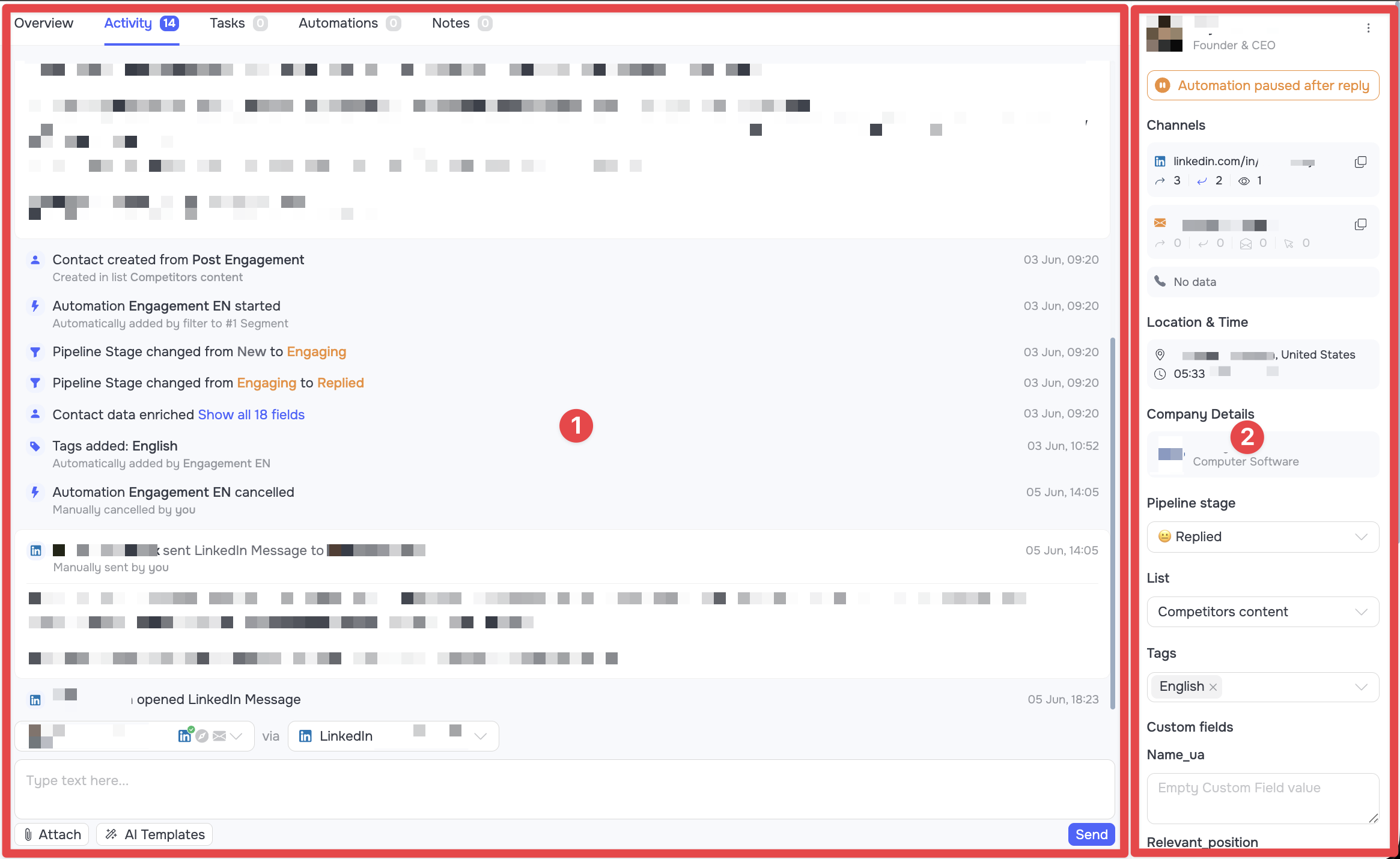
The contact card is the main communication management center. To open it, go to the CRM, navigate to the Contacts section, and click on the desired person's name. The interface consists of the main workspace (1) with tabs in the center and a fixed information panel (2) on the right.
Information Panel (Right Side)
The key information is pinned here and always remains visible while you work with a lead:
- Short contact details: The contact's first and last name, as well as their current position or profile headline, are displayed at the very top of the card.
- Automation paused after reply: This indicator appears below the contact's position if they have replied to a message. Hover over the indicator and click Unpause Automation to remove the contact from pause mode and resume automations for them.
- Channels: Available contact data: link to the LinkedIn profile, email address, phone number, etc.
- Location & Time: The contact's physical location and their current local time.
- Company Details: Brief information about the company listed in the contact's profile.
- Pipeline stage: A dropdown menu for manually changing the pipeline stage.
- Tags та List: Segmentation tools. You can manage tags or change the list where the lead is stored.
- Custom fields: A list of all custom fields (variables) and their values. The fields are available for manual completion.
Main Workspace
Activity Tab
Activity - is the main and most important tab that opens by default. It is a dynamic chronological log (timeline) that records every action related to this contact.
The timeline consists of two main types of records:
1. System events and automation logs: Displayed as technical logs. They allow you to completely track the contact's path within the system.
Available data includes: the source of the contact's import, data enrichment results, the history of sales pipeline stage changes, tag management, detailed execution logs for each automation step, etc.
2. Communication history (Conversations): All correspondence with the contact is displayed in the form of a convenient chat. For each message, the following information is shown:
- Communication channel: A corresponding marker stands next to the message (LinkedIn icon, InMail icon, or Email envelope).
- Message text: The full content of the template you sent or the reply received from the contact.
- The exact time and date of each reply.
Manual communication panel
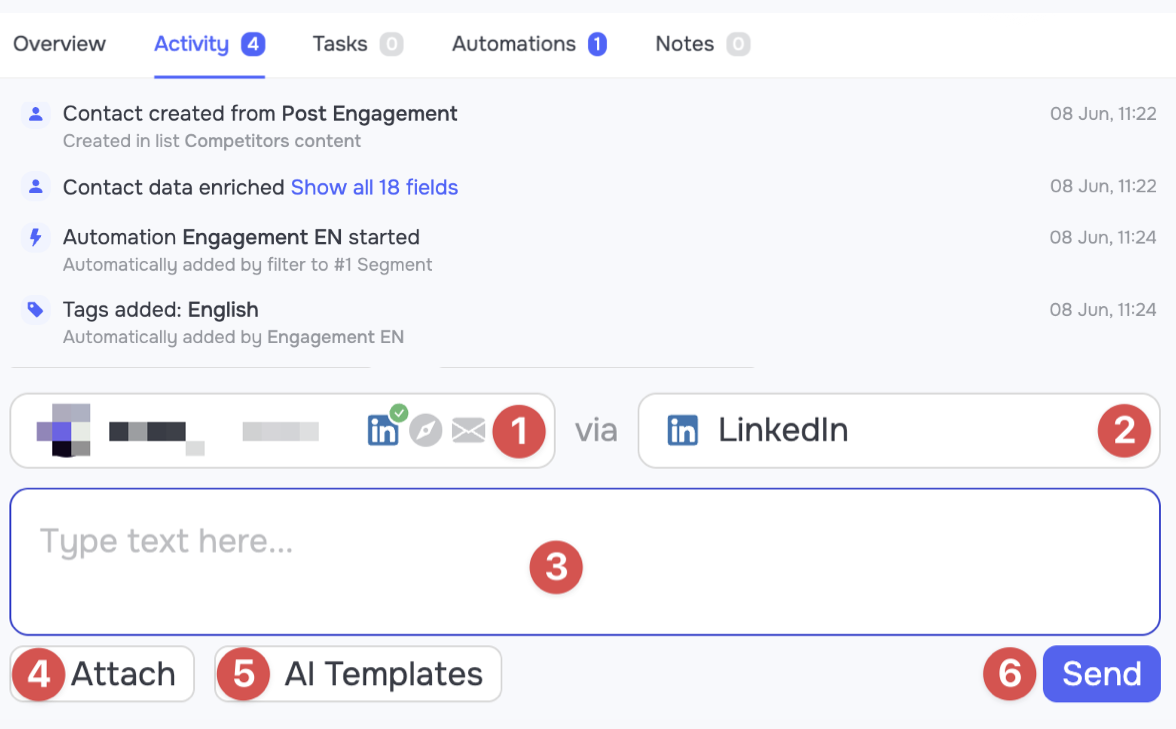
At the very bottom of the Activity tab, there is a panel for sending messages manually:
- Sender Profile Selection (1): Allows you to choose the profile from which the message will be sent.
- Channel Selection (2): Click on the adjacent icon to switch between communication channels (LinkedIn, InMail, Email, Note). The availability of channels depends on whether the person is in your contact network and the availability of their contact data.
- Text field (3): Space for writing or editing a message.
- Attach (4): A button for adding files or images to your message.
- AI Templates (5): Button for quickly accessing previously created text templates.
- Send (6): Button for sending the message.
Other Workspace Tabs
- Overview: An extended profile summary saved from LinkedIn. The Headline, About, Experience, Education sections, etc, are displayed here. This allows you to review information about the contact without navigating directly to their LinkedIn profile.
- Tasks: A list of manual tasks for this contact, categorized by statuses: In Progress, Completed, and Canceled.
- Automations: Shows exactly which automations this lead is currently participating in (Active) and which ones they have already completed (Finished).
- Notes: A built-in editor where you can leave detailed notes about the contact for yourself or your team members.
Advanced Actions
In the upper right corner of the card, there is a three-dot icon (...) that opens an additional management menu.
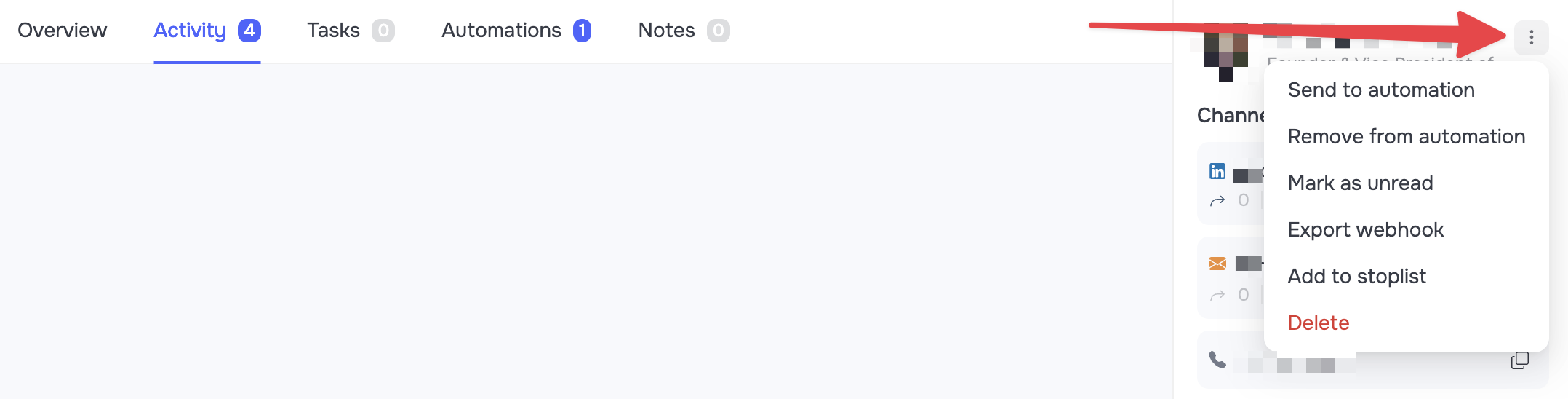 - Send to automation / Remove from automation: Add or forcefully remove a contact from the selected automation.
- Mark as unread: Mark the dialogue history as unread.
- Export webhook: Send contact data via a configured webhook to an external system.
- Add to stoplist: Add the contact to the global stoplist (protection against any interaction with the contact within Grinfi).
- Delete: Completely remove the contact from the CRM.
Part 2: Account Card
An account card is created in your CRM in two ways:
- Through a separate import: Using a dedicated company import type (e.g, company search in Sales Navigator or CSV file import).
- Automatically: When importing new contacts, the system reads the current workplace specified in the contact's profile and independently generates the corresponding account card.
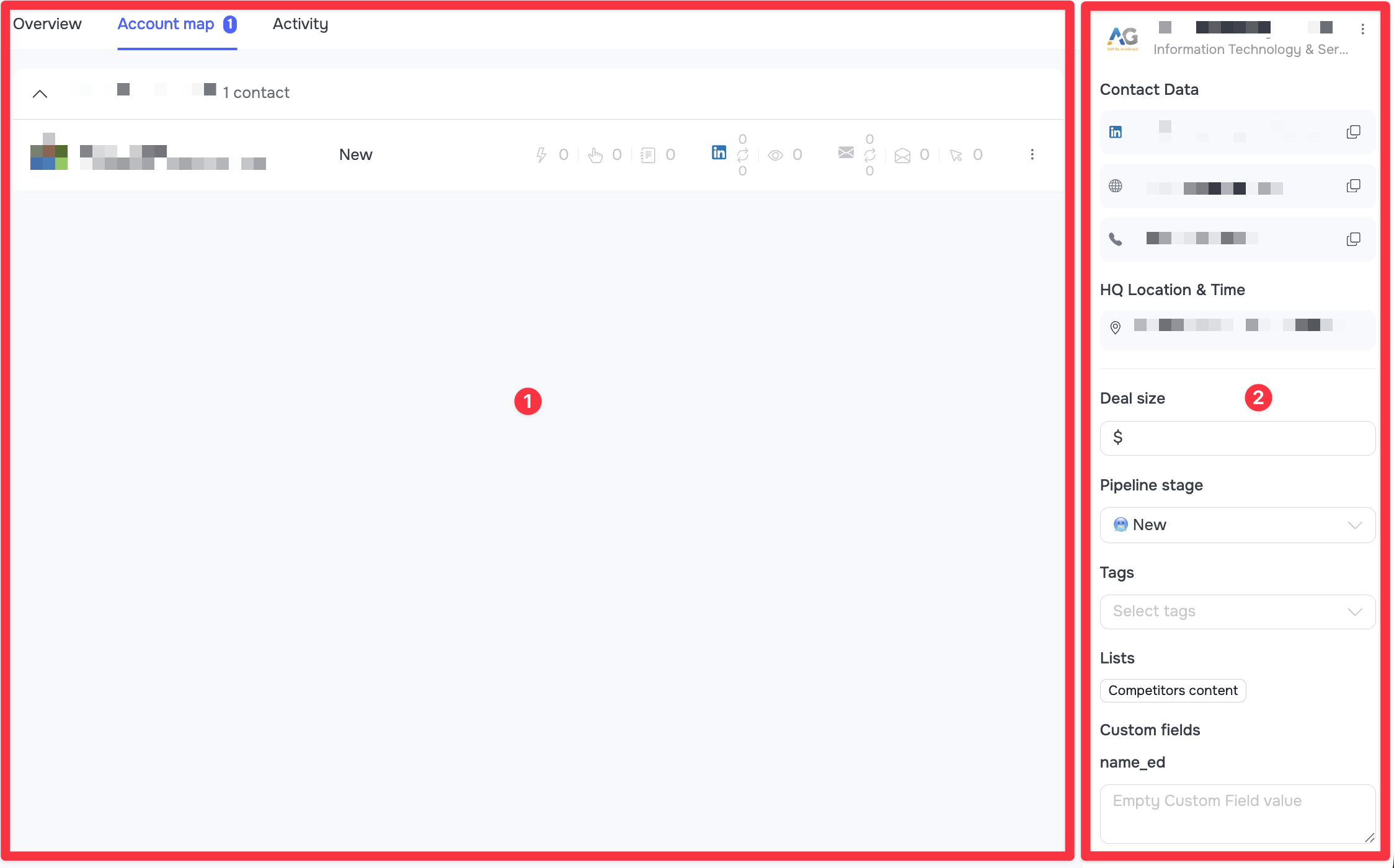
To open an account card, go to the CRM, navigate to the Accounts section, and click on its name. The interface consists of the main workspace (1) with tabs in the center and a fixed information panel (2) on the right.
Account Information Panel (Right Side)
The right-side panel is adapted for organization-related data:
- Contact Data: Links to the company's LinkedIn page, its official website, and other data.
- HQ Location & Time: The physical location of the headquarters and the local time.
- Deal size: A field where you can manually enter the estimated amount of a potential deal.
- Pipeline stage, Tags, Lists: Tools for moving the entire company through the sales pipeline and grouping it by lists or tags.
- Custom fields: Variables that relate directly to the company.
Account Workspace Tabs
The central area is divided into three specific tabs:
- Overview: General information about the company. This tab displays a detailed description, industry, specializations, contact details, and more.
- Account map: A list of all contacts available in your CRM who work at the selected company. You can instantly assess which contacts are being engaged and navigate to their personal cards in one click.
- Activity: A history of system events related to this company (import source, data enrichment results, pipeline stage change history, tag management, etc).