Connecting an email account is a necessary step to launch automated email campaigns.
🟡 Note: Please pay attention to the changes in subscription plans from April 28, 2026. Email connection (multichannel feature) is only available for Enrich and Scale plans, as well as for users who purchased their subscription before this date and remain on their legacy plans.
To connect your email, go to the Sender Profiles section, select the required profile, and open the Email tab. Here you will see two connection options: Gmail and Custom SMTP.
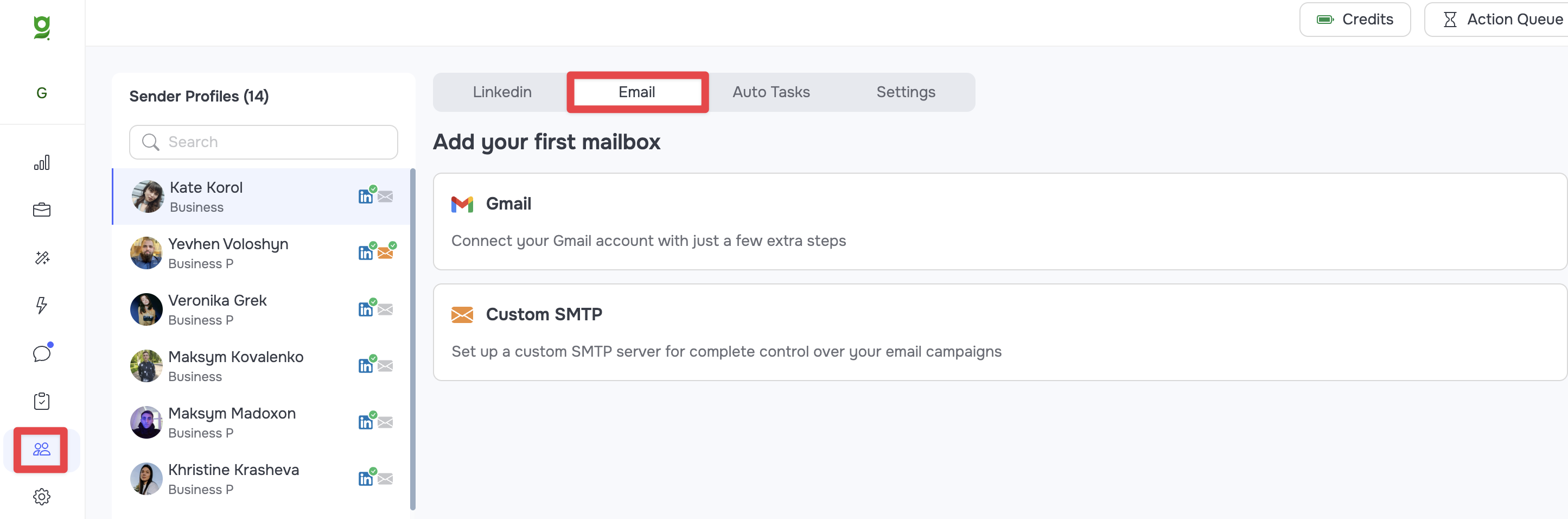
Connecting via Gmail
If you are using Google email, select the Gmail option. You will need to create a special App Password to connect to Grinfi.
- Log into your Google account's security settings and make sure that 2-Step Verification is enabled. (2-Step Verification).
- Create an App Password (App Password).
- Return to the connection window in Grinfi. Enter your email address in the Login field.
- Paste the generated 16-digit password into the App Password field.
- Click the Connect button.
Connecting via Custom SMTP (Other Providers)
If you use an email service from any other provider (please note that connecting Outlook emails via SMTP is no longer supported), select the Custom SMTP option.
- Enter your email address in the Login field and your email password in the Password field.
- Click Connect. If the system recognizes your provider, the connection will be completed automatically.
- If the provider is unknown to Grinfi, additional settings will expand. You will need to manually fill in the server details: SMTP Host, SMTP Port, IMAP Host, and IMAP Port.
🟢 Tip: This information can be found in your email provider's settings or by contacting your corporate network administrator. - After filling in all the technical fields, click the Connect button.
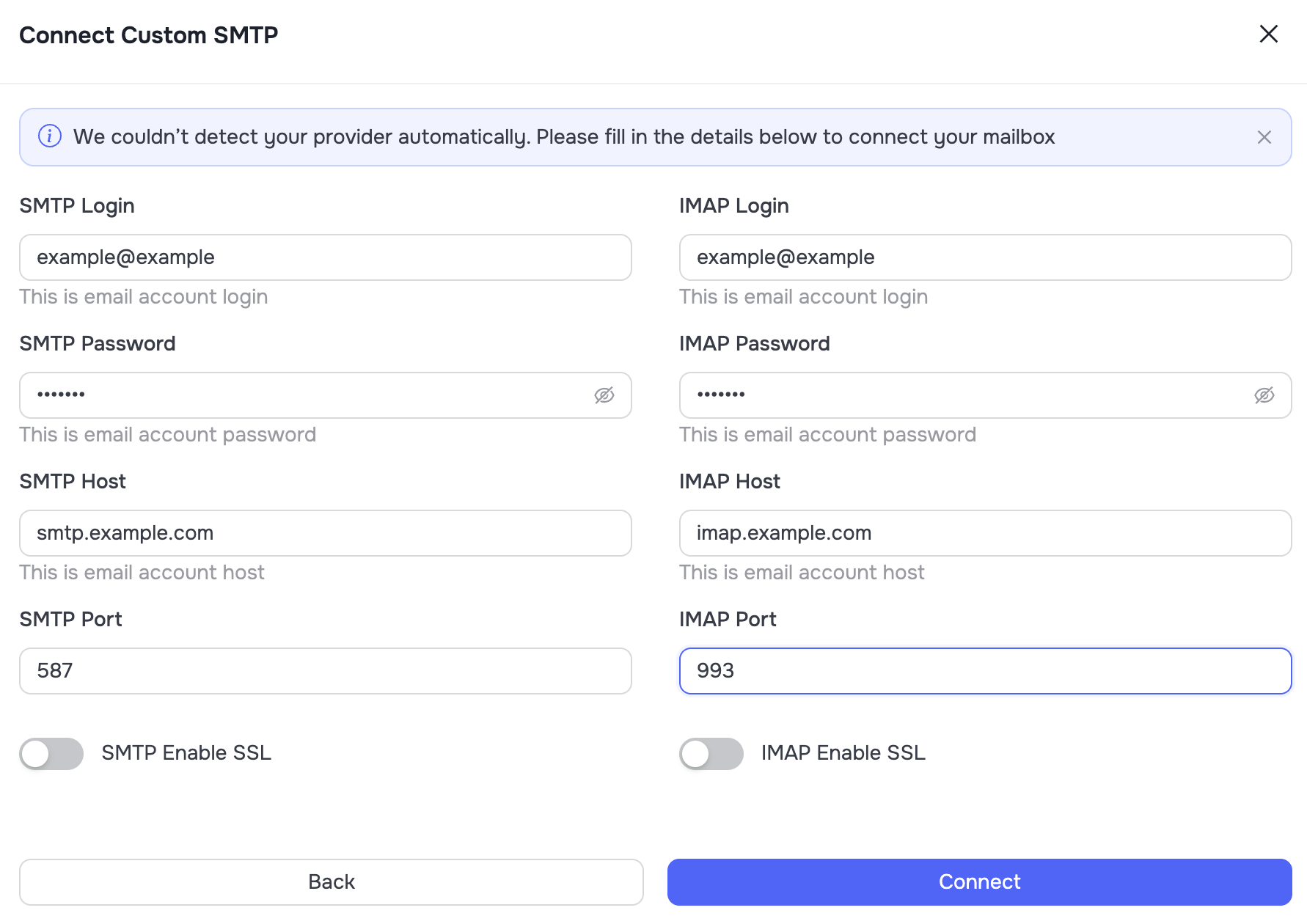
Connected Mailbox Settings
After a successful connection, your mailbox will appear in the list under the Email tab. To expand the detailed settings panel, click the three-dot icon (...) next to the connected mailbox and select Settings.
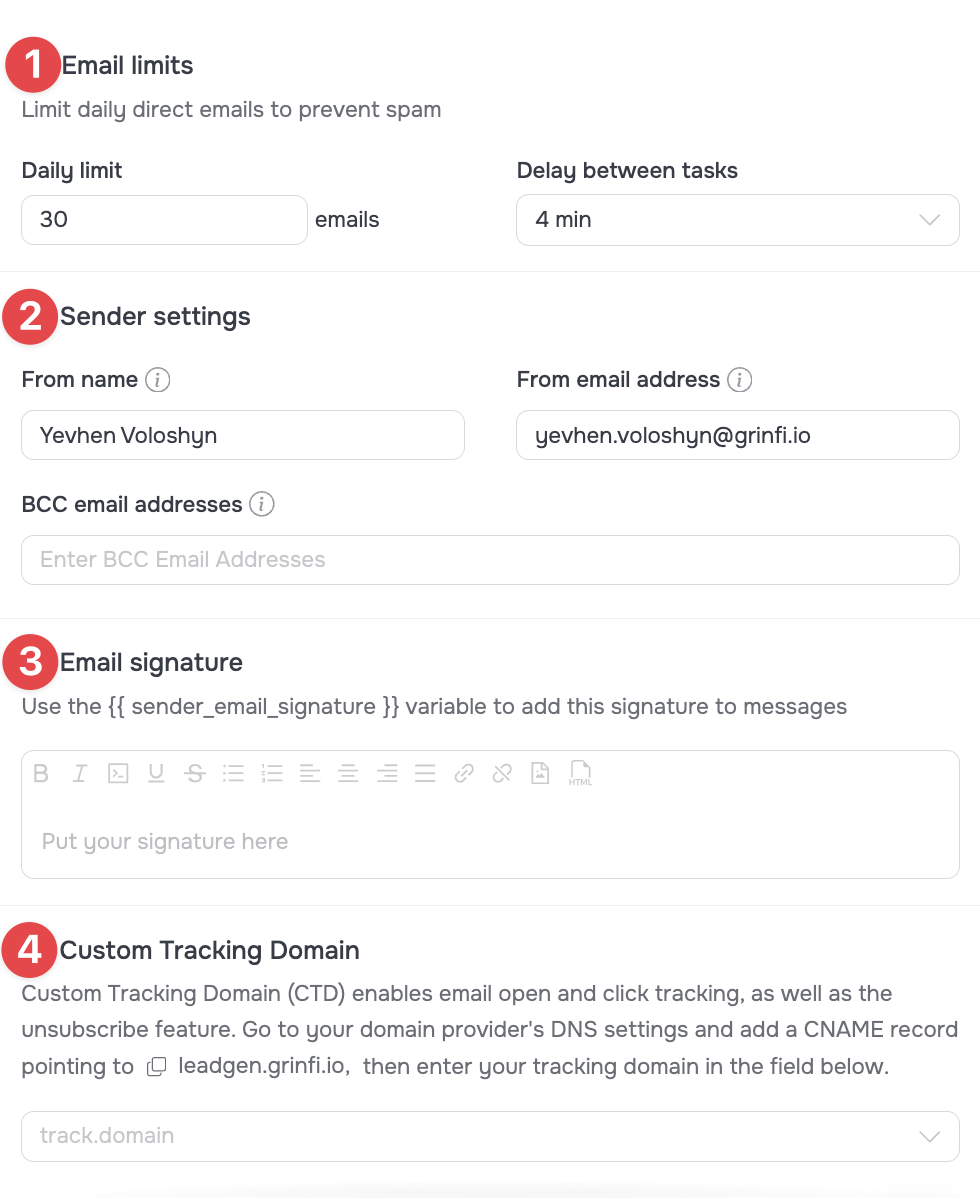 In this panel, you can manage your mailing parameters:
- Email limits (1): Set a Daily limit for sending emails and the interval between sending emails (Delay between tasks).
- Sender settings (2): Specify the sender's name (From name),that the recipient will see. If necessary, add BCC email addresses.
- Email signature (3): A section for creating your professional signature.
🟡 Note: The configured signature is not automatically added to your sent emails. It is only a system variable. For the signature to be sent with the email, you must manually add the variable#{{ sender_email_signature }}into the text field of the corresponding Send Email node inside your automation. - Custom Tracking Domain (4): Settings for a custom tracking domain. This is a critical tool that allows the system to record email opens (Open Rate) and link clicks. You can find detailed setup instructions in the following article: [Set up a Custom Tracking Domain].