The Sender Profile dashboard provides detailed statistics regarding the status of your LinkedIn account, its activity, warmup level, and limit compliance. It is your primary tool for avoiding restrictions and increasing the effectiveness of your campaigns.
Below is a breakdown of every module on this page.
1. General Profile Status
At the top of the screen, you will find three key indicators of your account's "health" and activity.
 - Account Health: A comprehensive assessment of your LinkedIn profile's safety. Click View details (1) to open a radar chart. This chart analyzes key metrics that most often trigger restrictions (profile activity, account age, network size, etc).
If the indicators are within a safe range, you will see your profile's strengths.
If there are risks, the system will highlight which specific metric requires your attention.
- Your Daily Connections Limit vs Market (2): An evaluation of your profile's potential. This scale shows how your number of connection requests compares to the Market median and the Top 25% of users with a similar warmup level.
🟡 Note: Activity is compared with accounts of a similar warmup level from other users, not with all Grinfi users.
🟢 Tip: This is your guide for scaling.
If your Account Health is high but your activity is lower than the market, you have the potential to increase your daily limits.
If your profile exceeds the market average while its "health" is declining, you should reduce activity to avoid triggering restrictions.
- Warmup Level: Shows your profile's progress within the warmup system, which consists of 5 levels. Your current status is influenced by two factors: the age of your LinkedIn account and the number of active actions performed via Grinfi over the last month. Click View details (3) to see the detailed level grid and its target metrics.
2. Task Counters
Below the top widgets, there are counters for three types of actions: Connection Request, InMail, and Message.
 - Done today: The number of tasks completed during the current day.
- Total scheduled: The total number of planned tasks in the queue.
🟡 How Total scheduled is calculated: This metric shows the number of contacts currently in In progress status directly at the message/request sending node in your automation.
Example: If your automation has a "Like post" node before sending a request, the contacts waiting for a like will not appear in the Total scheduled counter for connection requests. They will only appear there once they have completed the previous step.
3. Activity Chart
This chart allows you to visually assess the volume of sent requests and compare it with your defined limits. A legend is located above the chart for your convenience:
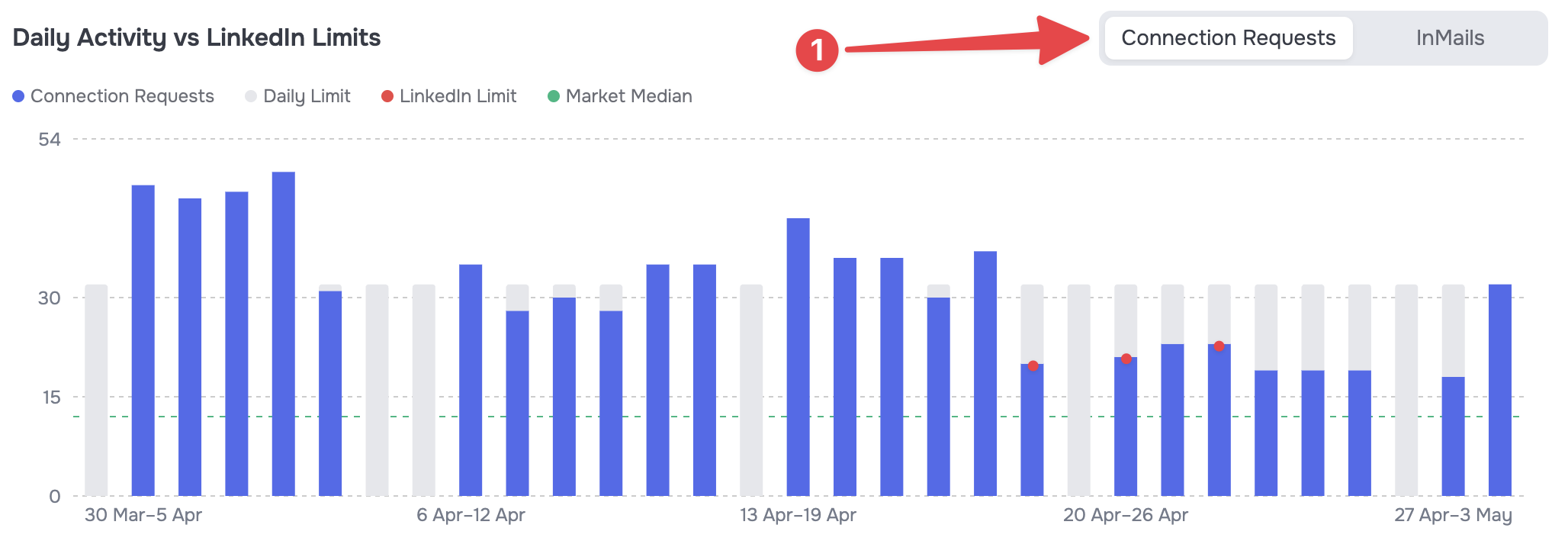 - Connection Requests (🟦 blue bars) - the actual number of requests sent on a specific day.
- Daily Limit (⬜ grey bars) - the maximum daily limit you have set in your profile settings.
- LinkedIn Limit (🟥 red marker) - a dynamic boundary showing when LinkedIn sent a warning regarding reaching the connection request limit.
- Market Median (🟩 green dotted line) - еhe average market activity level for profiles at your warmup level.
Using the toggle (1) in the upper right corner of the graph, you can switch the data display from Connection Requests to InMails.
4. Key Metrics
Below the activity chart, four main performance indicators for your profile during the selected period are displayed.
 - LinkedIn Limit Hit: Shows how many times your profile encountered LinkedIn's algorithmic restrictions (received warnings from the social network).
-
Safety Buffer: The percentage difference between your activity and the market average.
- A positive value means you are working more cautiously than other users.
- A negative value means you are sending more requests than the market average. This is normal for warmed-up accounts but requires careful monitoring of the profile.
-
Network Growth: The actual number of accepted requests during the selected time period.
-
Acceptance Rate: The percentage of contacts who accepted your connection request.