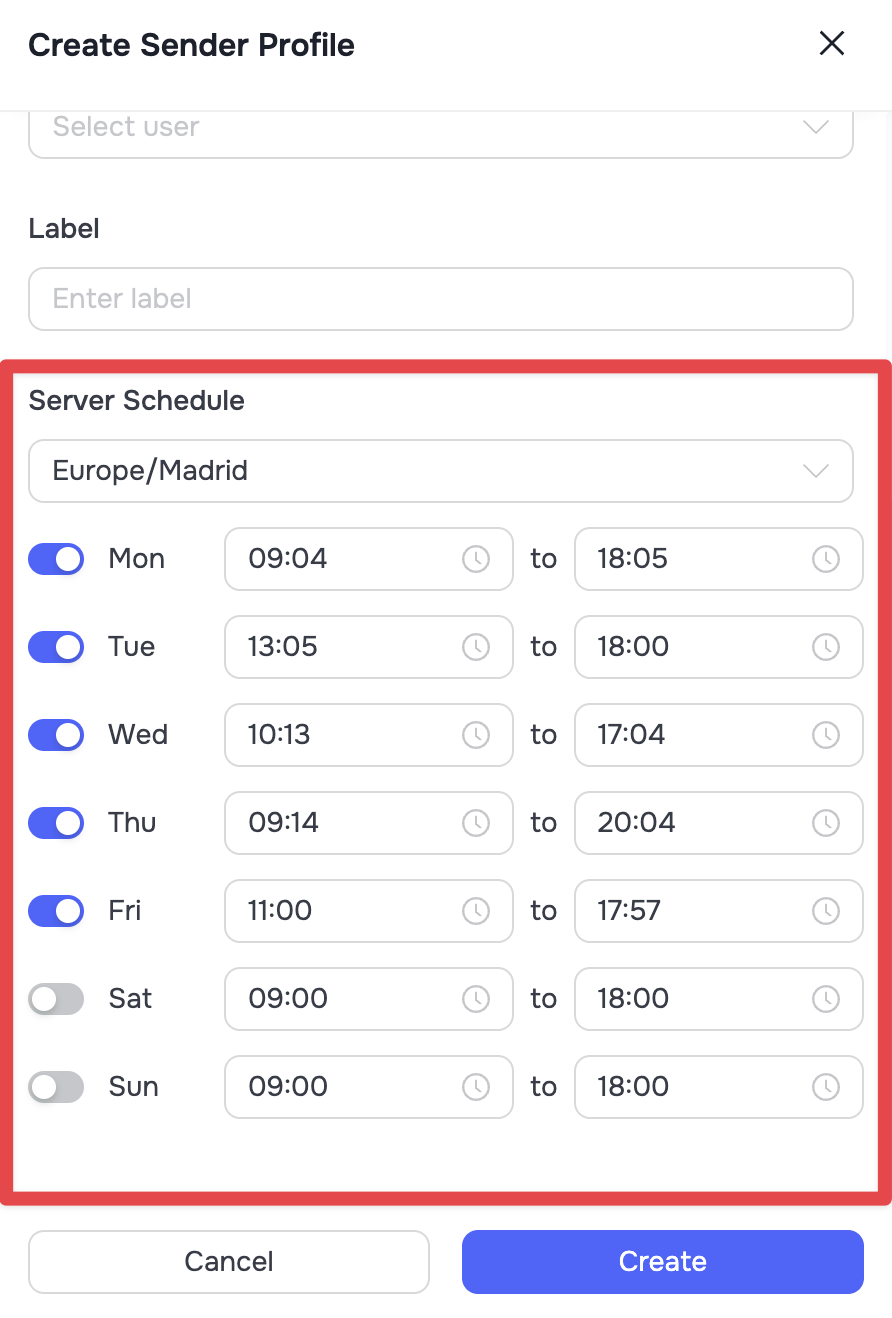
The Server Schedule determines the days and hours during which your Sender Profile is active, maintains connections with social networks, and executes tasks.
The schedule is set during the Sender Profile creation stage. You can find detailed step-by-step instructions on this process in the article: [How to Create Sender Profile].
Why is Server Schedule Important?
The main purpose of setting up a work schedule is to maximize the simulation of a real person's natural behavior.
If the server runs 24/7 without breaks, your profile will constantly appear online. For LinkedIn's security algorithms, uninterrupted 24/7 activity is a clear indication of automation usage.
Using a work schedule allows you to:
- Create natural pauses: During designated "non-working" hours, the server switches your profile to offline status.
- Increase profile trust: Clearly regulated activity does not arouse suspicion from LinkedIn's monitoring systems.
How to Set Up the Server Schedule
During the creation of a Sender Profile, the Server Schedule block will be available in the settings window.
- Select the required time zone for your server from the list (your current time zone is displayed by default).
- Enable or disable the required days of the week using the toggle switches.
- Set the working hours for each active day. You can set different time frames for different days to make the schedule look more natural.
 🟡 Note: By default, the schedule of launched automations (campaigns) automatically duplicates the schedule of your Sender Profile. If you set a custom schedule in the automation settings, make sure to check that their working hours overlap.
If the overlap between the profile and automation working hours is too short or non-existent, the automation will not have enough time to execute the scheduled tasks.
What Happens During Non-Working Hours?
When the server is in an off state (according to your schedule), the system operates under the following rules:
- Message synchronization: All incoming LinkedIn messages are synchronized into Grinfi exclusively during the profile's working hours. If a contact sends a message during a non-working pause, synchronization will occur only after the working schedule resumes.
- Auto Tasks: Any scheduled actions (sending connection requests, messages, likes, etc) are completely paused.
- Contact import: Imports that involve the LinkedIn profile are paused and will resume only during working hours.
🟡 Note: CSV file imports are available at any time of day because they do not involve the LinkedIn profile.
How to Change the Schedule for an Existing Profile
If you need to update the schedule for an already created and connected profile:
- In the Sender Profiles section, select the corresponding profile.
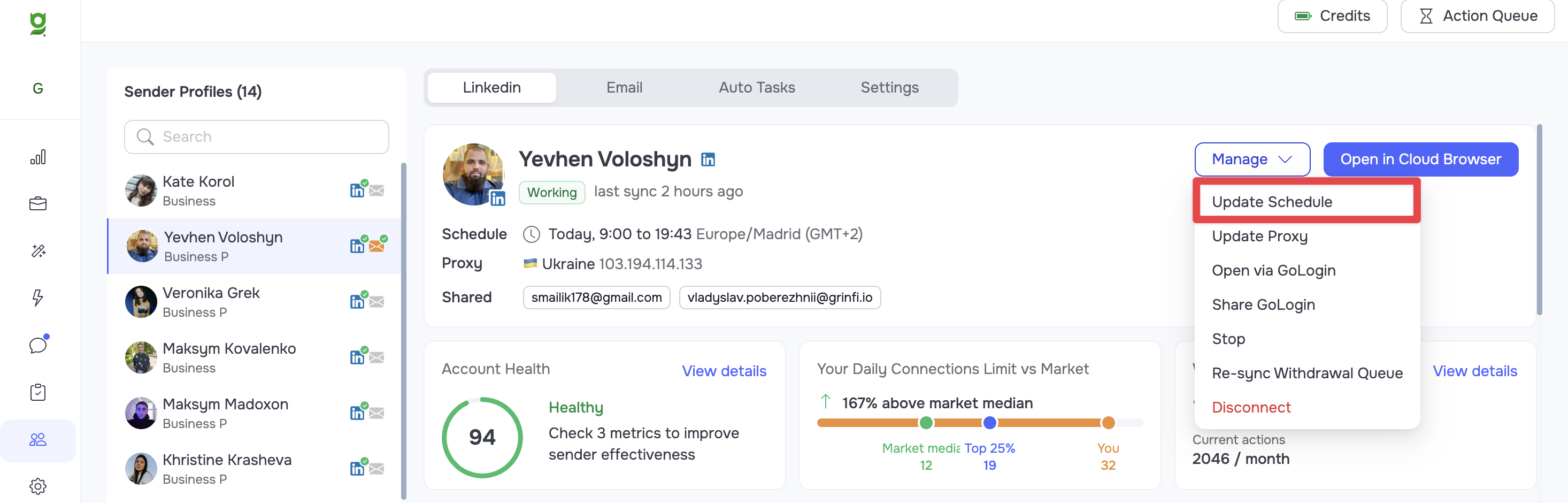
- In the upper right corner, click the Manage button and select Update Schedule.
- Make the necessary changes.