Manual Tasks are system reminders that help you keep track of scheduled actions for specific contacts and complete them on time.
🟡 Note: A manual task works purely as a reminder. Marking a task as done does not trigger any automatic action in the system. For example, if the task is to send a message, you must first send it to the contact yourself, and only then mark the task as done.
How to create a manual task
You can create a task directly from the Contact card, either in CRM - Contacts or in Messenger.
-
Open the card of the contact you need and go to the Tasks tab.
-
Click the Create Task button.
-
From the dropdown, select the task type (for example, Send connection request, Send direct message, Visit profile, Endorse skills, etc).
-
Fill in the settings in the modal window:
-
Sender Profile: Specify the sender profile the action should be performed from.
-
Task assignee: Assign the person on your team who is responsible for completing this task.
-
Date and Time: Set the date and time when the scheduled action should be performed.
-
Message / Note: Add a message draft or an internal note for yourself or your colleagues.
-
-
Click Confirm to save the task.
Managing tasks in the Manual Tasks section
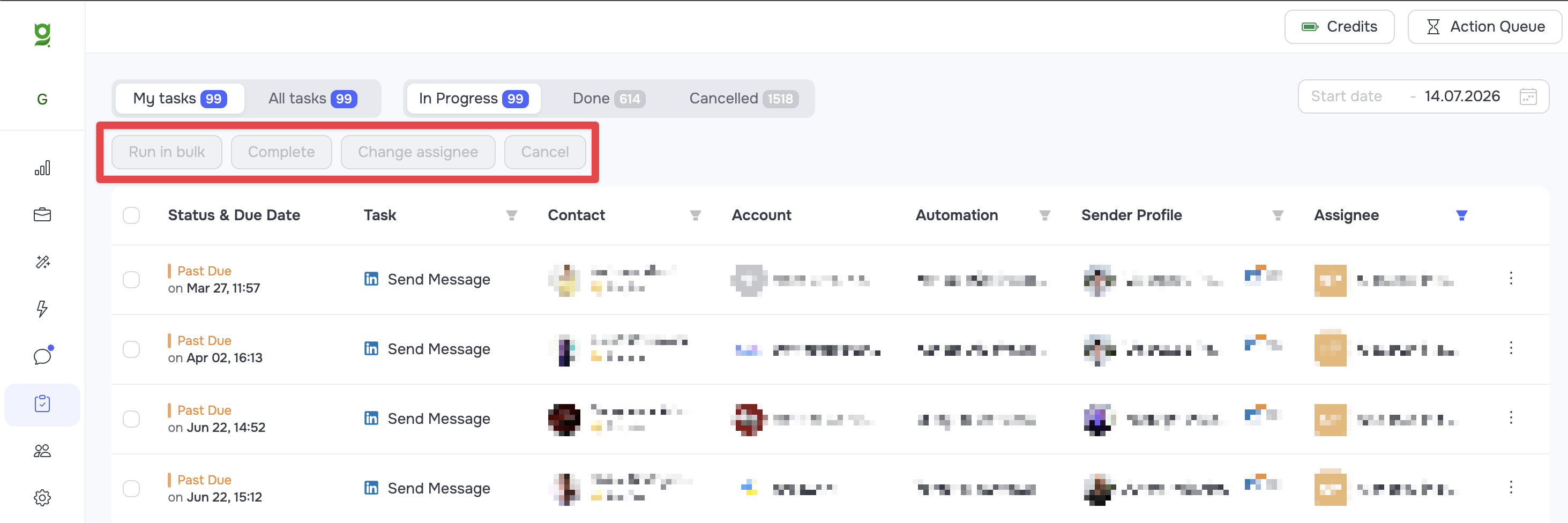
To make it easy to track and process all scheduled actions in bulk, the system has a dedicated Manual Tasks section in the left sidebar.
Tab navigation: At the top of the section, you can switch between showing only your tasks (My tasks) and the full list of your whole team's tasks (All tasks). You can also sort by status: In Progress, Done, and Cancelled.
Bulk actions: Once you select one or more tasks in the list, you can apply actions to them from the top bar:
-
Run in bulk: Starts step-by-step execution mode. The system opens the cards of the selected contacts one by one so you can focus on performing the required actions.
-
Complete: Marks the selected reminders as done (the actions themselves are not performed).
-
Change assignee: Changes the assigned user for the selected tasks.
-
Cancel: Cancels the tasks.
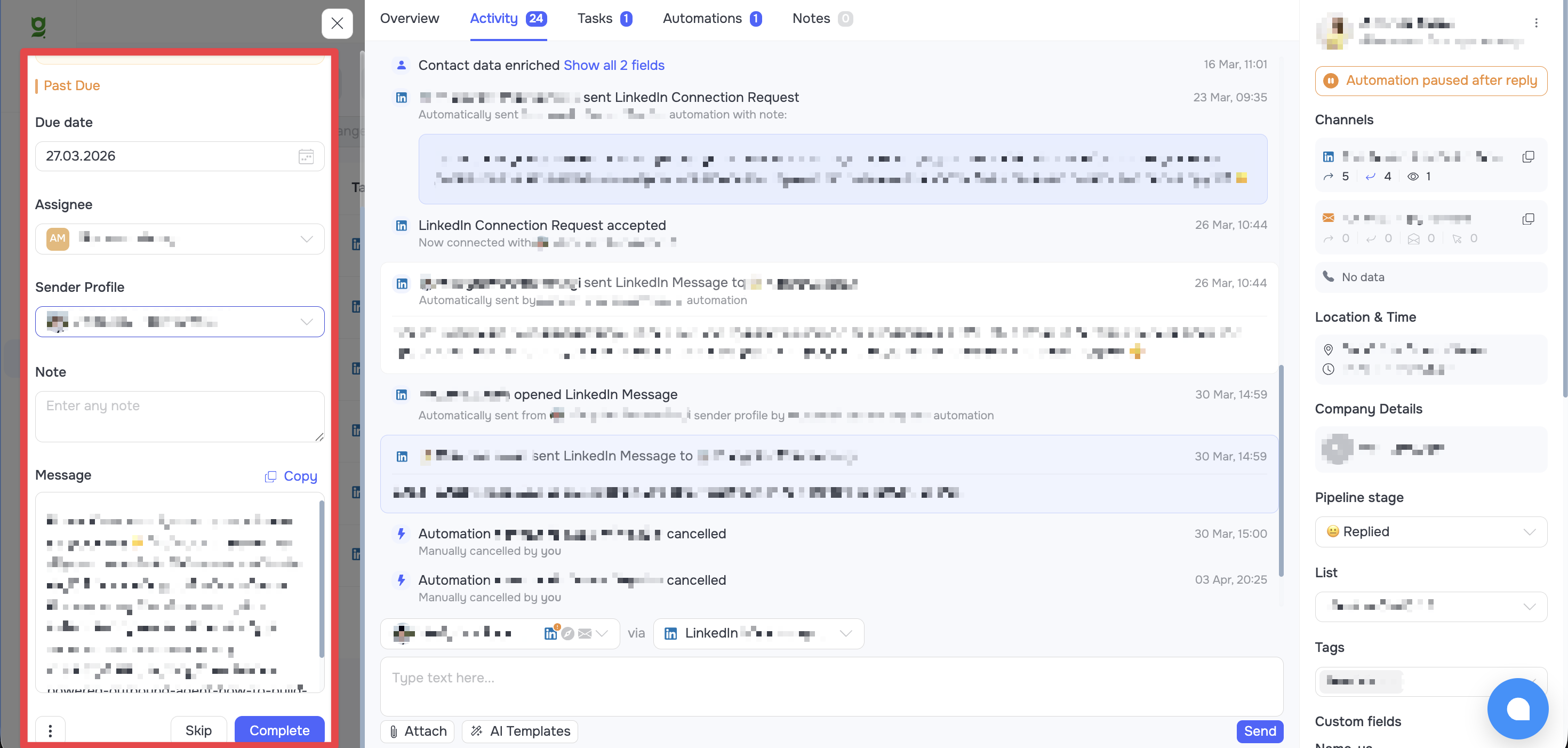
When you click a specific task row, the system automatically opens the Contact card with the task window on the left side of the screen. In this window, review the task details, make adjustments if needed, perform the action, and then mark the task as done (Complete) or skip it (Skip) to come back to it later.
Filtering the list
To quickly find specific tasks, you can click the filter icons in the table column headers. Filtering is available by:
-
Task type;
-
Contact name;
-
Automation name;
-
Sender Profile;
-
Assignee.
In addition, there is a calendar in the top right corner of the screen for filtering tasks by a specific date range.