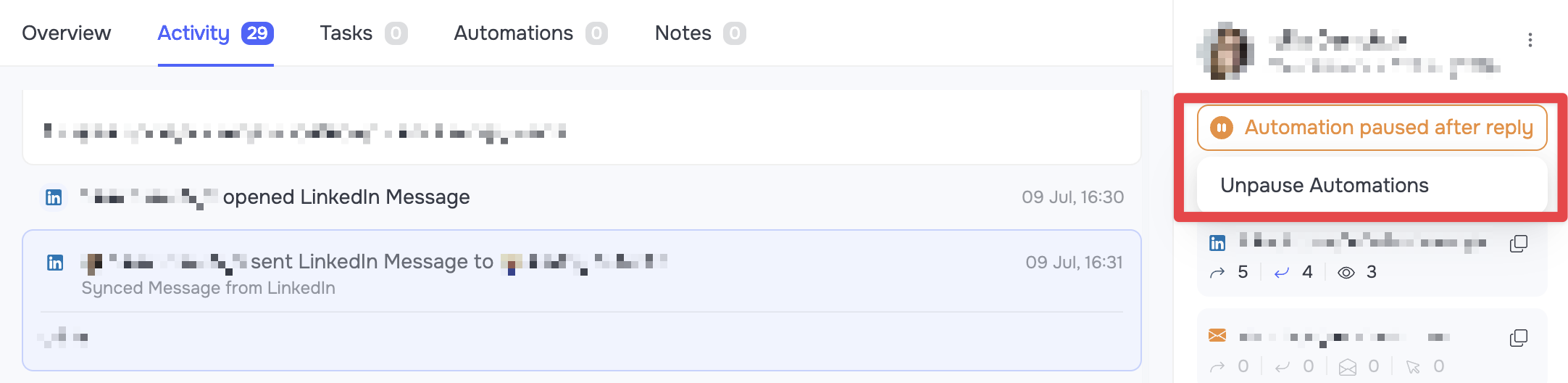
Grinfi has a built-in mechanism that automatically pauses outreach when a contact responds (on LinkedIn or via Email) while an automation is running. The algorithm assigns them the "Automation paused after reply" status.
How the pause works
The main purpose of this status is to prevent template messages from being sent to a contact with whom a live conversation has already started.
-
Communication is blocked: The pause status freezes only communication nodes (Send Message, Send Email, Send InMail).
-
Other actions continue: The contact keeps moving through the funnel and performing other (non-communication) actions without interruption (for example, Visit Profile, Like Latest Post, Add Tag, etc.) until they reach the nearest communication node, where their movement is stopped.
-
The status works globally: This status applies to the contact globally. It covers all currently active automations the profile is in, as well as any future automations they are added to, until the status is removed manually.
-
Where it's shown: The status indicator appears on the contact card in the right-hand information panel, and also in the Messenger section.
An exception to the rule: the "Send Always" function
The one exception that lets the system ignore the pause status is the Send Always toggle enabled in the settings of a specific communication node.
If this toggle is enabled in the Send Message, Send Email, or Send InMail nodes when building the automation, the message will be sent regardless of whether the contact has the pause status.
How to take a contact off pause (Unpause)
Once you receive a reply from a contact, further communication switches to manual mode. If you need to return the contact to automated outreach, you have to take them off pause.
🟢 Tip: Before taking a contact off pause, open the contact card and go to the Automations tab. Make sure the contact isn't in any unnecessary or irrelevant automations. If needed, cancel their participation in those to avoid sending unwanted messages.
How to remove the pause status:
-
Open the card of the relevant contact or go to your conversation with them in the Messenger section.
-
In the right-hand information panel, find the orange "Automation paused after reply" indicator.
-
Hover over this indicator (a window with the Unpause Automations button will expand).
-
Click the button to confirm the action.
-
The contact's movement through the funnel will resume from the point (the communication node) where it was paused.